
Purpose
This feature lets the user enable and disable the “Google Lens assisted search” in chrome to search the query via camera .
Prerequisites
N/A
Steps
1. Navigate to Profiles and select New Profile.

2. Navigate to Application policy -> ADD
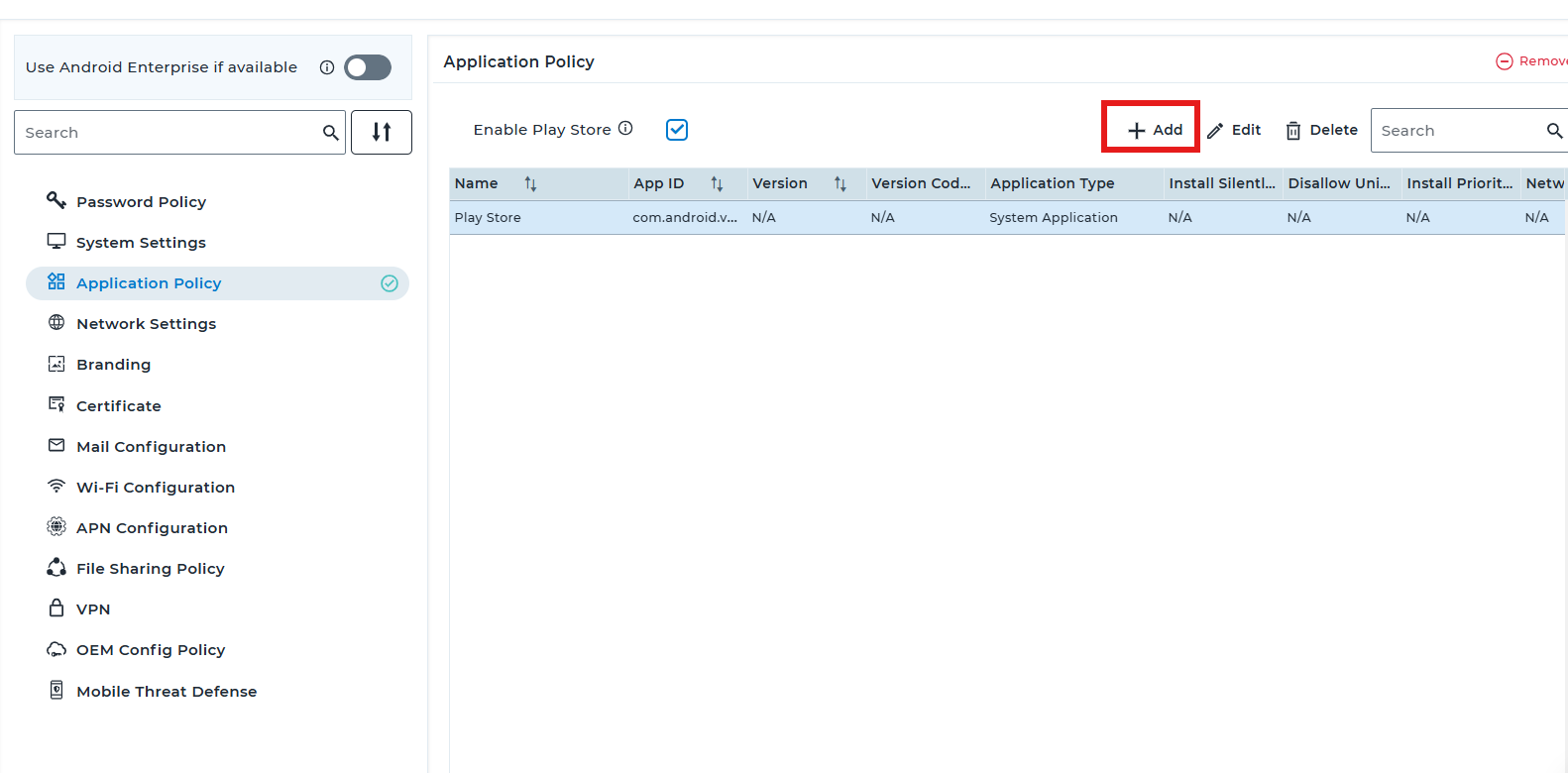
3: Select Play For Work and add Chrome application .
4:In Managed configuration search for “Allow Google Lens camera assisted search” and select “configure” save the settings and deploy the profile to the device.
.
5. Once the profile is deployed to the device, on the Chrome application(Managed App), Google Lens Associated Search will be enabled.
Conclusion
SureMDM enables administrators to manage Google Lens–assisted search through managed Chrome configuration on managed devices. By configuring the appropriate restrictions, organizations can limit or disable visual search capabilities to protect sensitive data. These settings ensure consistent enforcement across all enrolled devices via MDM.
Need more help? Here’s how to get help from our experts.