
Purpose
This feature will allow the user to manage the incognito mode by enabling and disabling the feature to the user so the admin can man allow or restrict the feature to a specific user
Prerequisites
N/A
Steps
1. Navigate to Profiles and select New Profile.
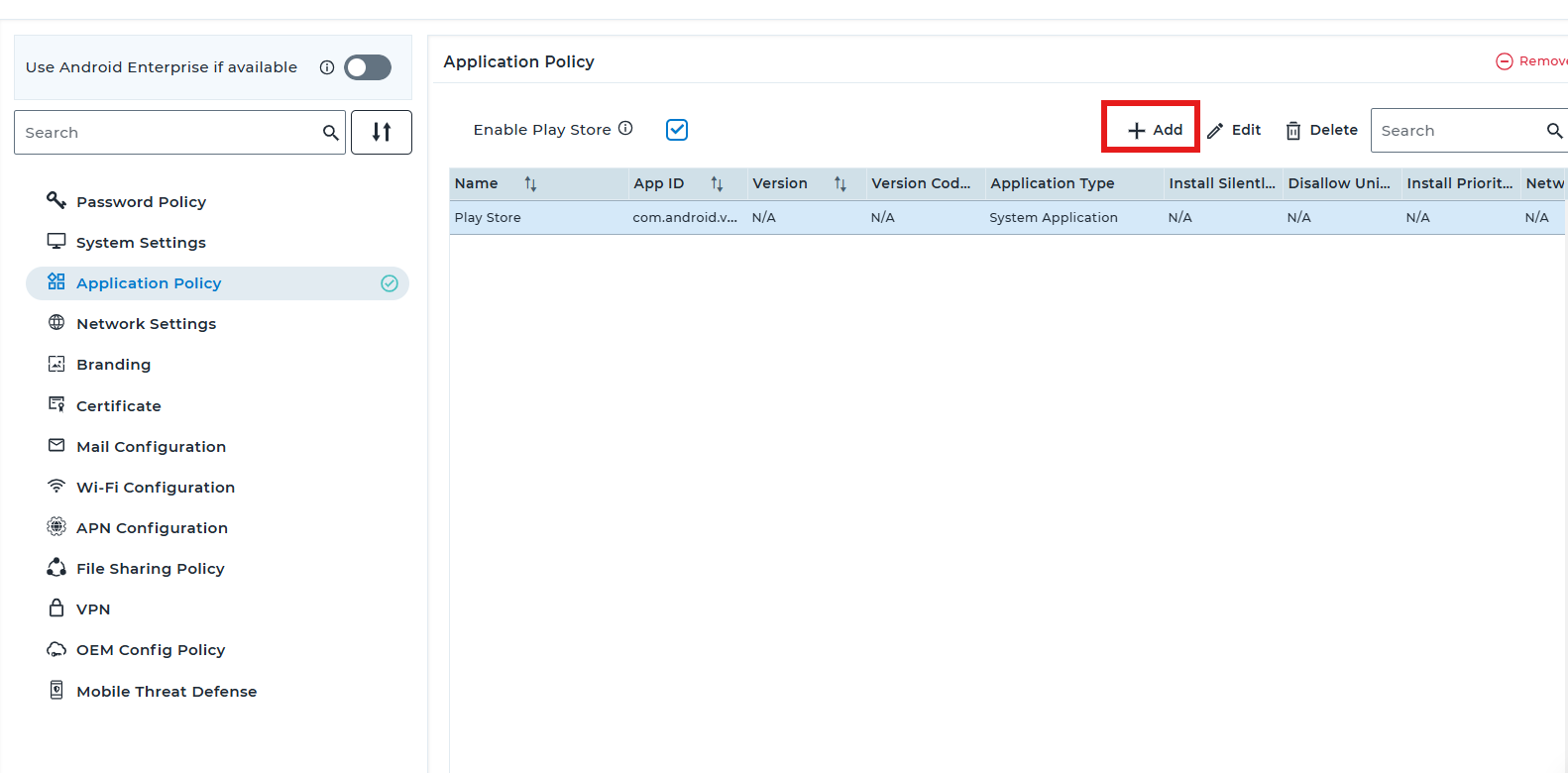
2. Navigate to Application policy -> ADD
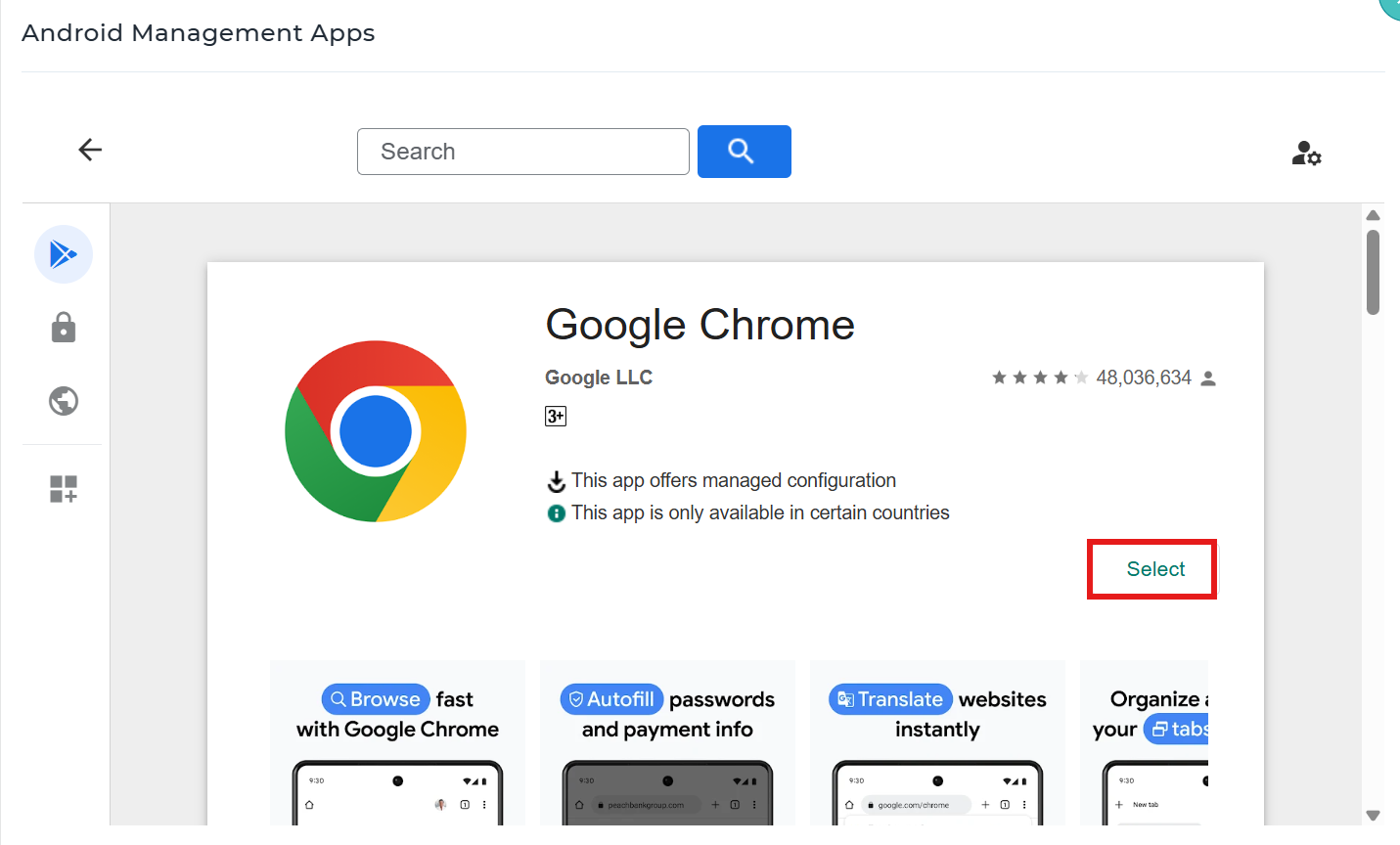
3: Select Android management apps and add Chrome.
4:In Managed configuration search for“Incognito mode availability” And select “configure”
5. You can either allow the user to use the incognito mode or disable it.
6. Save the profile settings and deploy it to the devices for the Incognito Mode to be either available or disabled on the device.
Conclusion
Using managed Chrome configurations in SureMDM, administrators can control or disable Incognito mode on managed devices. This helps enforce browsing accountability and compliance with organizational policies. The settings are applied centrally via MDM to ensure uniform behavior across all devices.
Need more help? Here’s how to get help from our experts.