
Purpose
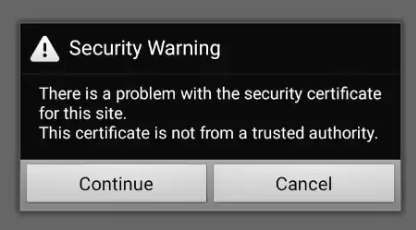
This article explains how to manage the security certificate warning message in SureLock Browser. This issue occurs when accessing websites with untrusted or self-signed SSL certificates in SureLock Browser.
Cause:
SureLock Browser shows a “Security Certificate Warning” when it cannot verify the website’s SSL certificate.
This usually happens if the certificate is “self-signed, untrusted, expired, or mismatched”.
As a result, the browser blocks or warns users, preventing normal access to the website.
Prerequisites
- Access to SureLock Admin Settings
- Permission to modify browser settings
Steps:
- Launch SureLock Settings
- Navigate to Managed Websites
- Tap on Browser Preferences
- Locate the option “Show Security Warning”
- Enable this option
- Save the configuration and Relaunch SureLock
Note: Certificate warnings are recommended because they help administrators identify issues with website certificates, such as expired, invalid, or untrusted certificates.
However, if the administrator does not want users to see such warnings, they can hide them by unchecking the Show Security Warning option.
Conclusion
Disabling the security warning in SureLock allows users to bypass certificate-related alerts and access websites without interruption. This is useful in environments where internal or self-signed certificates are used.
Need more help? Here’s how to get help from our experts.