
Purpose:
SureMDM now supports Third-Party App Management for Windows devices, allowing administrators to seamlessly add, deploy, and control app installation and update behavior directly from the SureMDM console. This capability helps IT teams ensure that devices always run the latest and most secure versions of required applications without manual intervention.
Using this feature, admins can configure auto-install and auto-update policies for approved third-party apps, define when updates are applied, and make selected apps visible in the SureMDM App Store for device users.
Prerequisites:
Supported on SureMDM Agent version 5.08 or higher.
Steps:
1. Log in to the SureMDM console.
2. Navigate to App Store → Windows → Add New App → Select Third Party Apps.
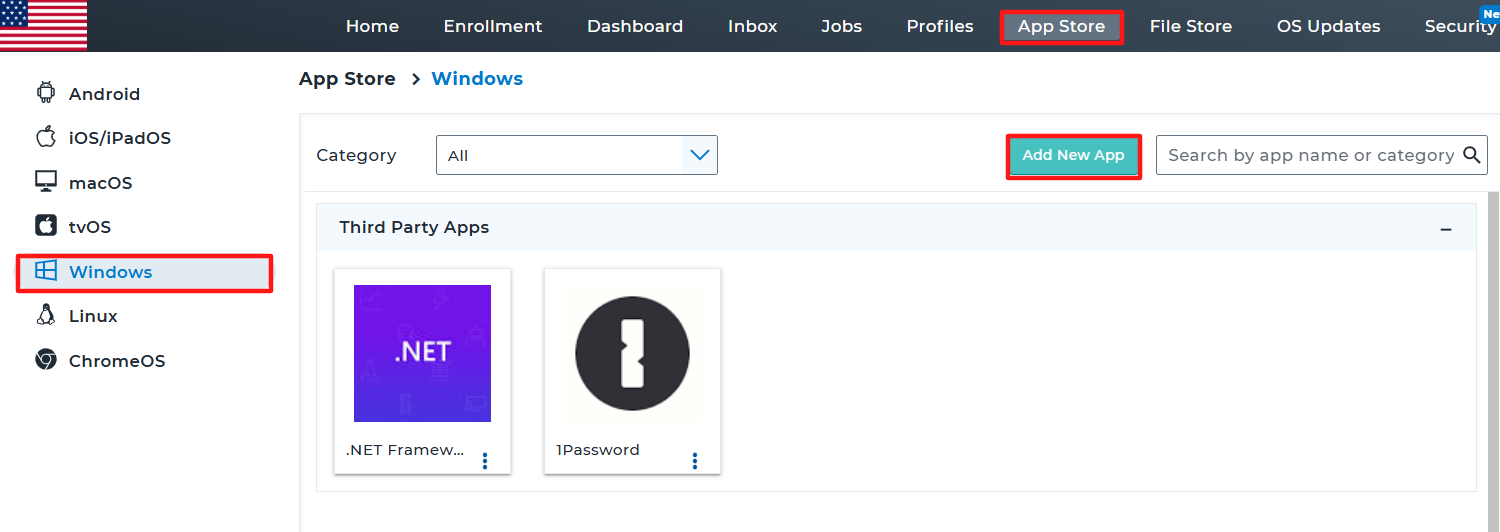
3. Click Add, then select the required app from either All Apps or Featured Apps and click Add.
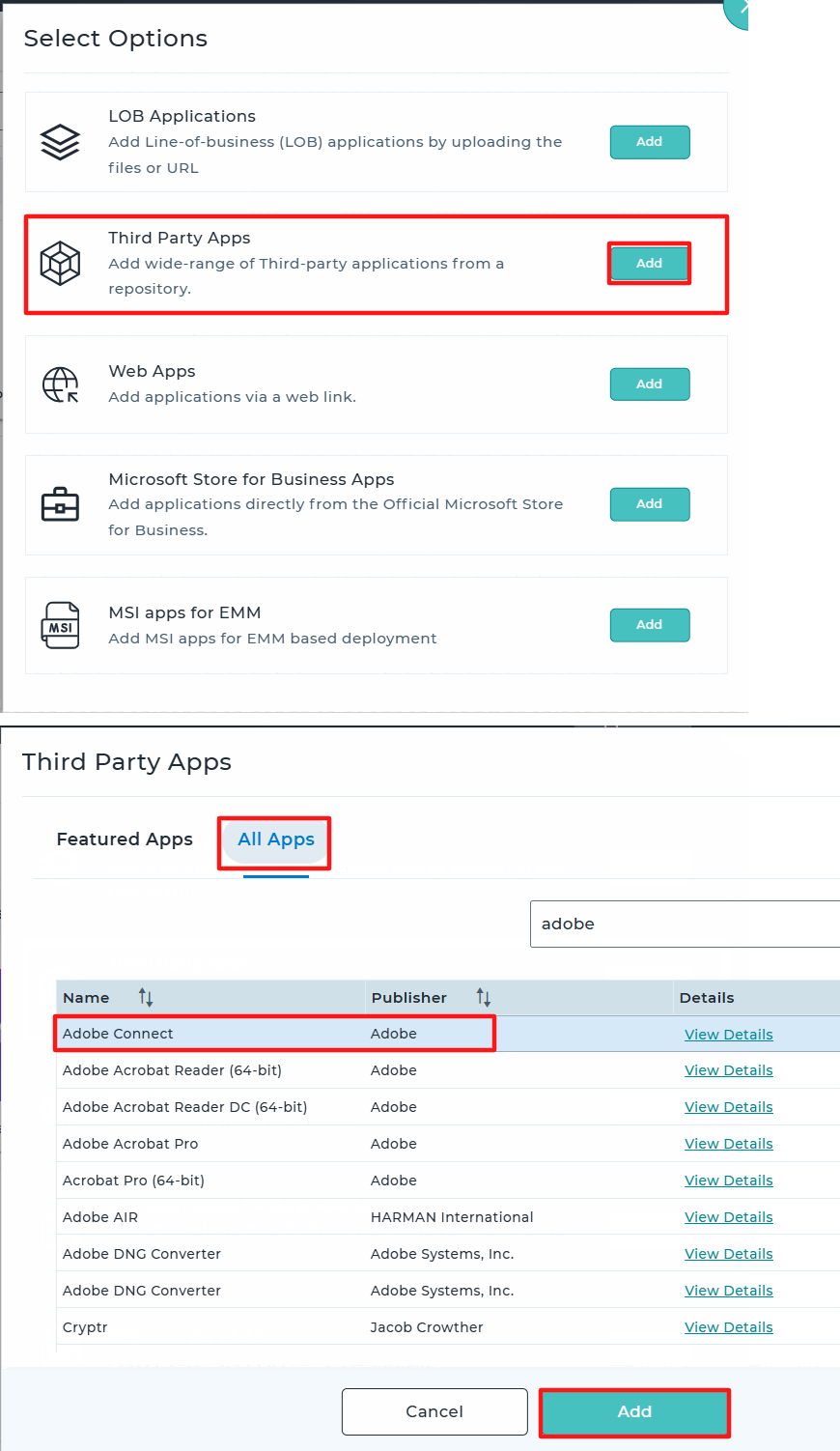
4. Once the app is added to the App Store, navigate to the Profiles section.
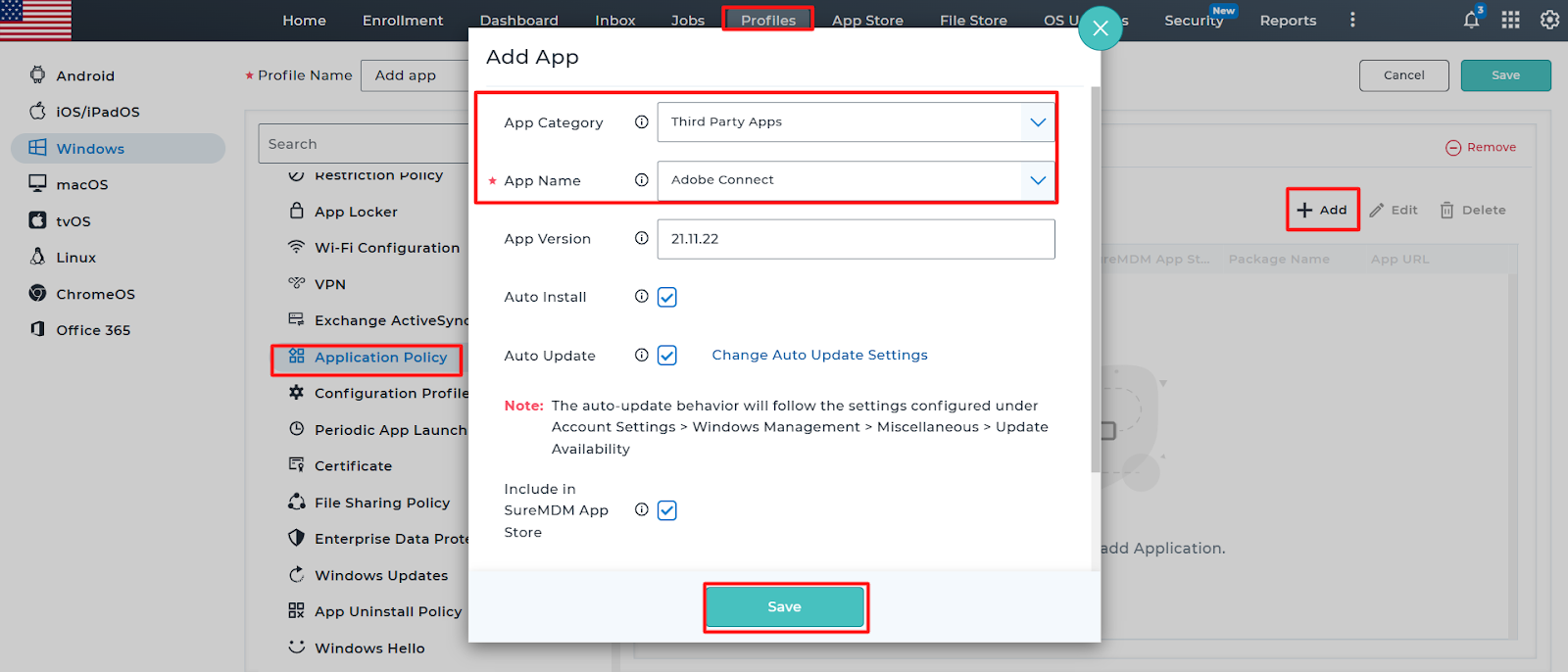
5. Select Windows→Click on New Profile or modify the existing profile→ choose Application Policy → click Configure.
6. Click Add, then select Third Party Apps from the App Category section.
7. Under App Name, select the app added from the Third-Party App section in the App Store.
8. Configure the following options as needed:
- Enable Auto Install: Automatically installs the selected application on the device without user intervention.
- Enable Auto Update: Automatically updates the application to the latest version available in the repository. Updates occur silently without notifying the user.
- Include in SureMDM App Store: Adds the app to the SureMDM App Store available on the device.
- Featured App: Highlights the app as a featured item in the Windows App Store section of the console.
9. Click Save to create the profile and deploy it to the target devices.
Note:
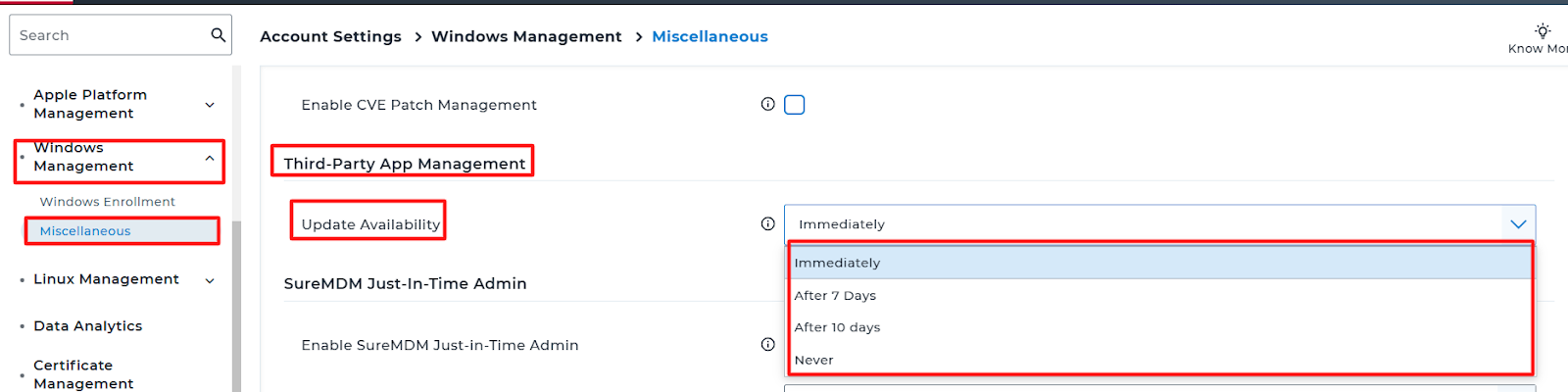
The auto-update behavior follows the settings configured under Account Settings → Windows Management → Miscellaneous → Update Availability.
Admins can set Update Availability to Immediate, After 7 Days, After 10 Days, or Never based on the use case.
Need help?
CONTACT US