
With the requirement to migrate a device from an existing console to a new console for multiple reasons, such as to manage all the devices under one single console, to move old devices from an expired account to a new account, etc.
Purpose
The purpose of this knowledge article is to provide a guide on how to migrate a device from one console to another console.
Prerequisites
- This feature is compatible with SureMDM Agent versions 27.12.03 and later.
- Android OS 5 and Above
Steps
- Login to the SureMDM console from which you would like to move the device.
- Create a Run Script job by navigating to Jobs > New Job > Android > Run Script.
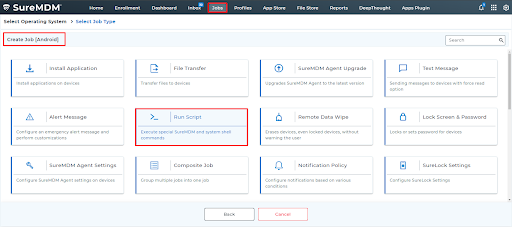
3. Place the below runscript and replace the highlighted details with the account details to which you would like to move the device.
am broadcast -a com.nix.COMMUNICATOR -e command change_nix_settings -e setServerPath <console URL> -e setAccountID <Account ID of SureMDM>Example:
am broadcast -a com.nix.COMMUNICATOR -e command change_nix_settings -e setServerPath test.suremdm.io -e setAccountID 122100617
NOTE: Do not use https:// when entering the server path in the Run Script.
4. For devices where the SureMDM Agent password is available on the console, kindly use the command mentioned below:
am broadcast -a com.nix.COMMUNICATOR -e command change_nix_settings -e password <Enter the SureMDM Nix agent password> -e setServerPath <console URL> -e setAccountID <Account ID of SureMDM>Example:
am broadcast -a com.nix.COMMUNICATOR -e command change_nix_settings -e password 1234 setServerPath test.suremdm.io -e setAccountID 1221006175. Save the job and apply on the device required to be moved.
Note:
- Make sure to conduct a trial with a single device before transferring multiple devices to ensure a seamless transition.
- Remove device entries from the old console only after confirming their existence on the new console.
- For devices where the SureMDM agent password is enabled, kindly keep the password handy.
Results
The device will be shown as offline on the old console and will be listed on the new console to which the device is being migrated.
Need more help? Here’s how to get help from our experts.