
Purpose
A new Drop Detection compliance job helps monitor device handling and hardware health. Administrators can set limits for Drop Count or Drop Severity. If a device exceeds these limits, it is marked Out of Compliance, enabling alerts or automated actions to protect hardware.
Prerequisites
Supported on devices whose hardware supports the accelerometer sensor with SureMDM Agent V >=28.56.04
Steps
1.Navigate to Job → New Job → Android
2. Click on the Android option and search for the Compliance job.
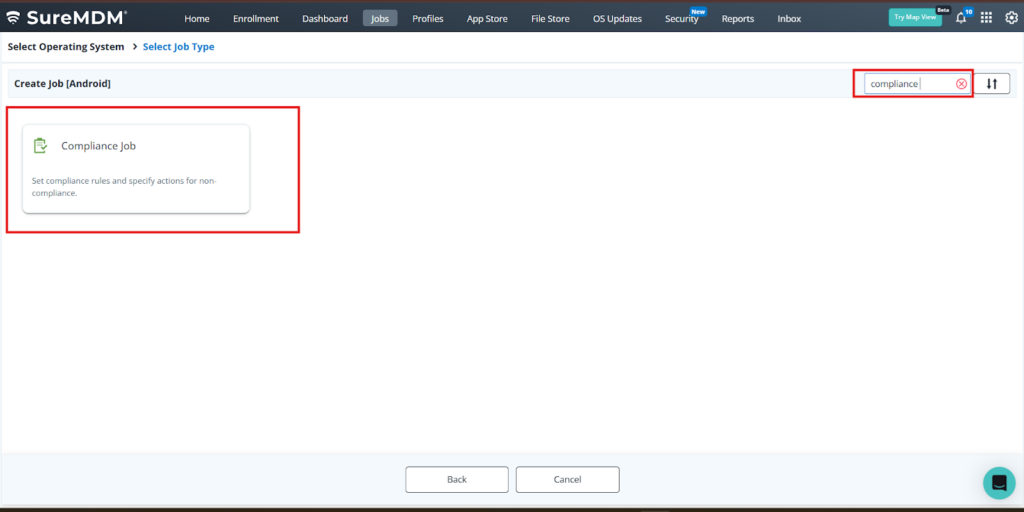
3. Under Compliance, click on the option “Enable Compliance Job.” It will enable all the compliances. From the list, select “Drop Detection” and click on “Configure.”
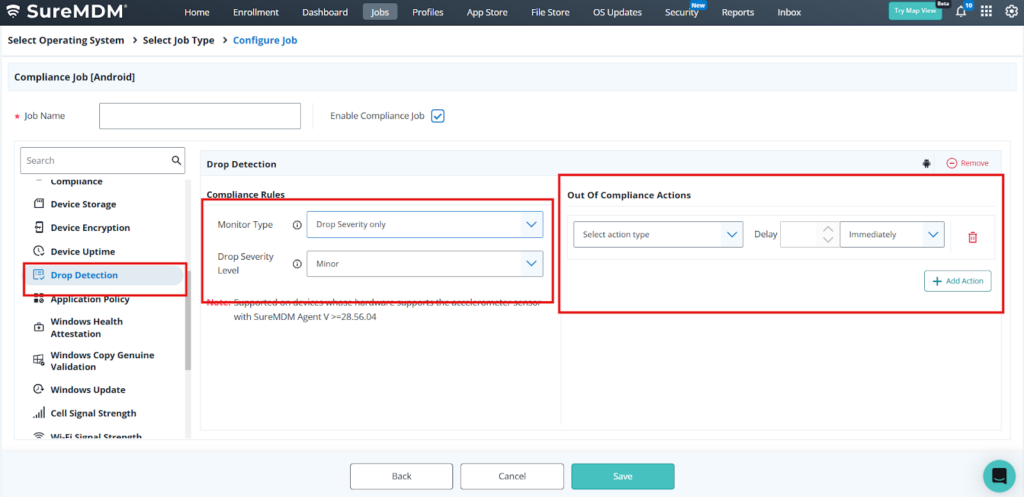
4. Under Drop Detection compliance, choose the “Monitor Type,” which determines what aspects of drop events should be considered for compliance.
4.1
- Drop Severity: If you select this option, you must choose the minimum drop severity that should be considered a violation:
- Minor: Drop lasting up to 0.3 seconds (≈ 0.5 m fall) — light or short drop.
- Moderate: Drop lasting 0.3–0.7 seconds (≈ 0.5–2.0 m fall) — typical desk or waist-height drop.
- Severe: Drop lasting more than 0.7 seconds (≈ above 2.0 m fall) — high or forceful impact.
- Minor: Drop lasting up to 0.3 seconds (≈ 0.5 m fall) — light or short drop.
Add the compliance action that should be triggered when the device goes out of compliance.
4.2
Under Drop Detection, set the Monitor Type by selecting an option from the dropdown. For example, choose “Drop Count only.”
Specify the Maximum Drop Count allowed before a violation is triggered. For example, set it to 1.
Select the Evaluation Period for monitoring drop events from the available options:
- 24 hours
- 7 days
- 30 days
- Custom (to set a custom period)
Explanation:
If the number of drops exceeds the specified Maximum Drop Count within the selected Evaluation Period, the device will be considered out of compliance, and the configured compliance action will be triggered.
For example, if the count is set to 1 and the evaluation period is 24 hours, then if the device experiences more than 1 drop within 24 hours, it will be marked as non-compliant and trigger the compliance action.
4.3
Under Monitor Type, select both Drop Count and Drop Severity, then configure all related settings.
Save the job and deploy it to the device. If the device falls out of compliance, the configured compliance action will be triggered and applied.
Conclusion
The Drop Detection compliance job allows administrators to track how devices are handled and maintain hardware health. They can define thresholds for drop counts or severity. If a device goes beyond these limits, it is flagged as non-compliant, triggering alerts or automated protective actions.
Need more help? Here’s how to get help from our experts.