
Purpose
This article describes how administrators can use the Notification feature in the SureMDM
console to identify devices running outdated SureMDM agents. It explains how to view the
outdated agent status and the percentage of impacted devices, helping administrators take
timely action to update agents and ensure effective device management, security, and platform
reliability.
Prerequisites
N/A
Steps
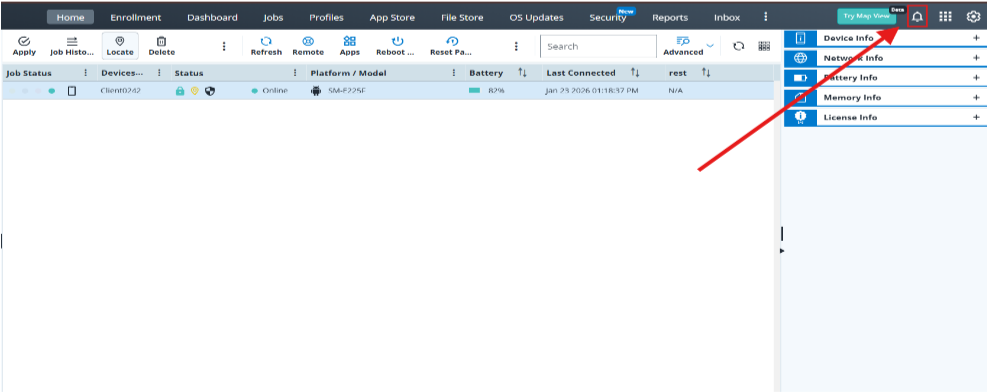
1. Log in to the SureMDM console. After logging in, locate the Notification icon in the console header and click on it.
2. After clicking the Notification icon, a drop-down menu appears. From the list, select Outdated Agent.
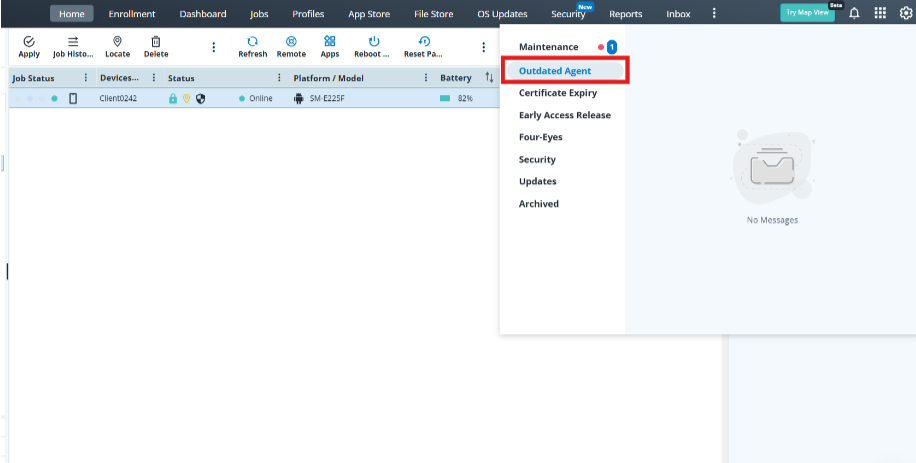
3: When the Outdated Agent option is selected, the console displays the percentage of devices that are not updated and are running an outdated SureMDM agent.
Conclusion:
The Outdated Agent notification feature in the SureMDM console allows administrators to monitor device compliance effectively. By highlighting devices with older agent versions and showing the percentage of affected devices, admins can take prompt action to upgrade agents, ensuring smooth device operations, enhanced security, and reliable management across the entire device fleet.
Need more help? Here’s how to get help from our experts