
Purpose
This article explains how administrators can remotely change the navigation bar type on Android devices using the SureMDM Console.
Prerequisites
- Should have a SureMDM Account.
- Devices to be enrolled in SureMDM.
- SureMDM Agent version should be 28.55.48 and above.
- Supported only for Platform Signed Android devices having OS versions 10+ and above.
- Should have Enterprise Agent Installed.
Steps
- Login to SureMDM Console
- Navigate to Jobs > New Jobs > Android > Security Policy > System Settings > Enable “Enforce System settings on device“ > Scroll down to find Sound and Display > Set Navigation Bar > Choose the type of navigation bar to be applied on your Device.
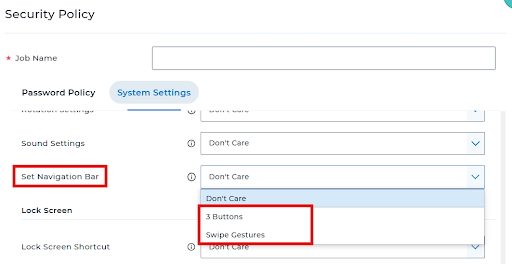
Note: Here don’t care refers to the default Navigation bar setting of the device
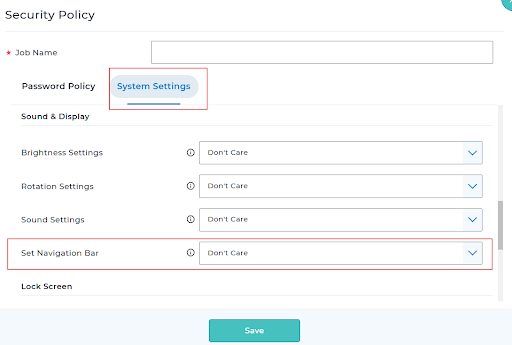
Conclusion: SureMDM allows administrators to remotely switch between 3-button and gesture navigation on Android devices, ensuring a consistent and user-friendly navigation experience without manual intervention.
Need more help? Here’s how to get help from our experts
Was this helpful?
YesNo