
Purpose
This feature allows the administrator to block incoming calls on Zebra devices using the Zebra OEMConfig powered by MX (Zebra) policy in SureMDM by configuring the Incoming Calls restriction.
Prerequisites
- N/A
Steps
- Log in to the SureMDM Console.
- Navigate to Profiles from the top navigation bar.
- Click Create New Profile.
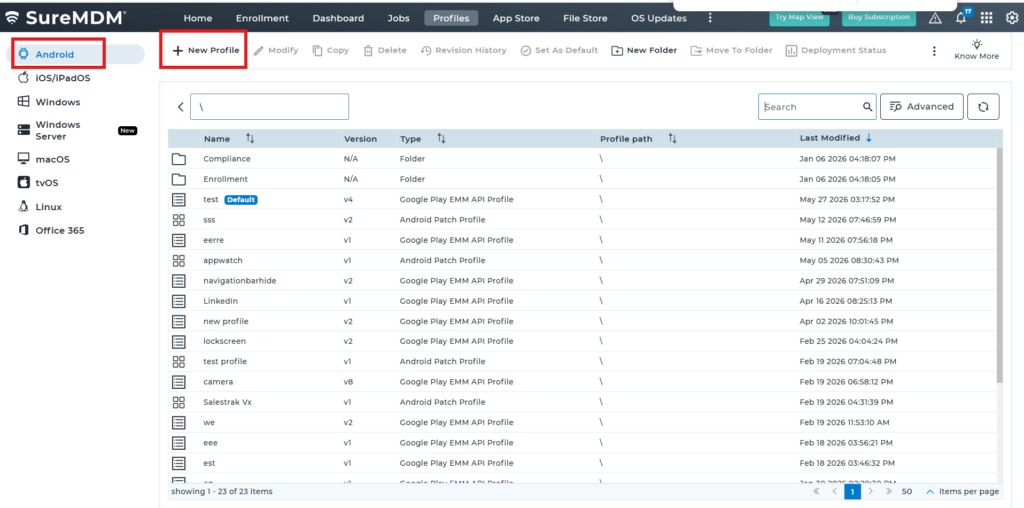
- Scroll down and select OEM Config Policy, then click Configure.
- Select Zebra OEMConfig powered by MX (Zebra).
- Click Expand All and search for Incoming Calls.
- Under General Configuration, locate Incoming Calls, from the dropdown, select Blocked.
- Save the profile.
- Deploy the profile to the required Zebra devices.
Expected Result
Once the profile is deployed successfully, the Zebra device blocks all incoming calls as configured in the OEMConfig policy.
Conclusion
The Incoming Calls restriction configured through the Zebra OEMConfig policy enables administrators to centrally prevent incoming calls on managed Zebra devices, helping enforce enterprise communication policies.
Need more help? Here’s how to get help from our experts.
CONTACT US
Was this helpful?
YesNo