
Purpose
- This article explains how to configure Password Policy settings in SureMDM Hub. Password Policy allows administrators to define and enforce password security rules for Hub Console users, including mandatory password renewal and password complexity requirements to improve account security and reduce unauthorized access risks.
Prerequisites
- Access to the SureMDM Hub console
- Administrator privileges to modify password policy settings
Steps
- Login to the SureMDM Hub console.
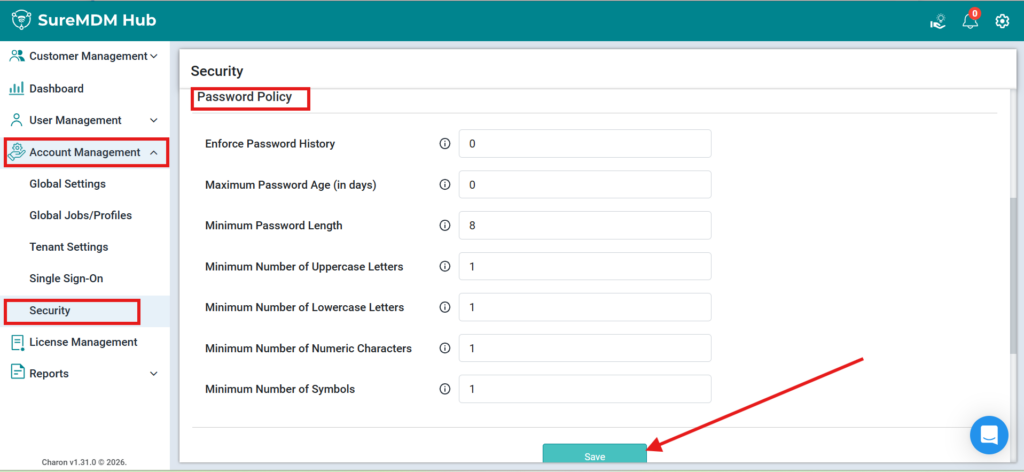
- Navigate to Account Management.
- Go to Security.
- Scroll down to Password Policy.
- Configure the required password policy parameters based on your organization’s security requirements:
- Enforce Password History
Defines the number of previous passwords users cannot reuse. - Maximum Password Age (in days)
Specifies the number of days after which users must reset their password. - Minimum Password Length
Defines the minimum number of characters required for the password. - Minimum Number of Uppercase Letters
Specifies the minimum uppercase characters required. - Minimum Number of Lowercase Letters
Specifies the minimum lowercase characters required. - Minimum Number of Numeric Characters
Specifies the minimum numeric digits required. - Minimum Number of Symbols
Specifies the minimum special characters required in the password.
- Enforce Password History
- After configuring the required settings, click Save or Update to apply the policy.
Conclusion:
Password Policy in SureMDM Hub helps administrators strengthen account security by enforcing password complexity requirements and periodic password renewal. This ensures better compliance with organizational security standards and minimizes the risk of unauthorized access.
Need more help? Here’s how to get help from our experts.
Was this helpful?
YesNo