
SureMDM allows admins to assign a default Job or Profile to a device group. This feature ensures that any newly enrolled device added to the group automatically receives the assigned configuration, streamlining setup and maintaining consistency.
Purpose
This article explains how to configure a default Job/Profile for a group in SureMDM so that newly enrolled devices receive it automatically.
Prerequisites
Admin access to SureMDM Console
Steps
- Log in to the SureMDM Console.
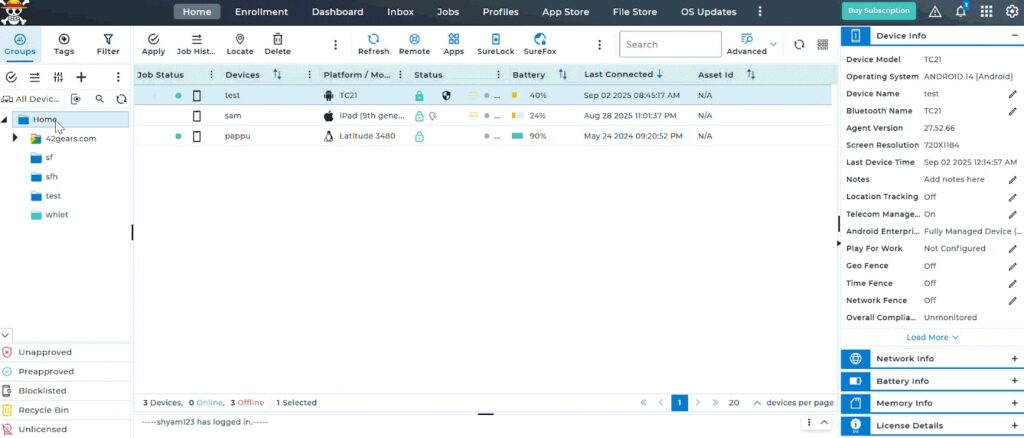
- Go to the Groups section on the left-side menu.
- Select the Group you want to configure.
- Click the Group Properties icon or select Group Properties from the right-click menu.
- In the Assigned Job/Profile, Click on Assign.
- Select the Job/Profile and click next.
- You can use the available filter options to precisely configure how the default Job/Profile should be deployed to devices within a group.
These options allow targeted deployment based on group hierarchy and device attributes.
- Group Inclusions—Use this to include devices from other groups that are not part of the current group but should still receive the default job/profile.
- Group Exclusions—This allows you to exclude devices from specific subgroups or other groups within the hierarchy.
- Include Subgroups—The default job/profile will automatically apply to all devices in the current group and its subgroups.
- Model—Restrict the job/profile to only apply to devices of a specific hardware model.
- OS Build Number—The job/profile will only apply to devices matching the specified OS build number.
- Apply on existing devices —The default job/profile is applied immediately to all existing devices in the group
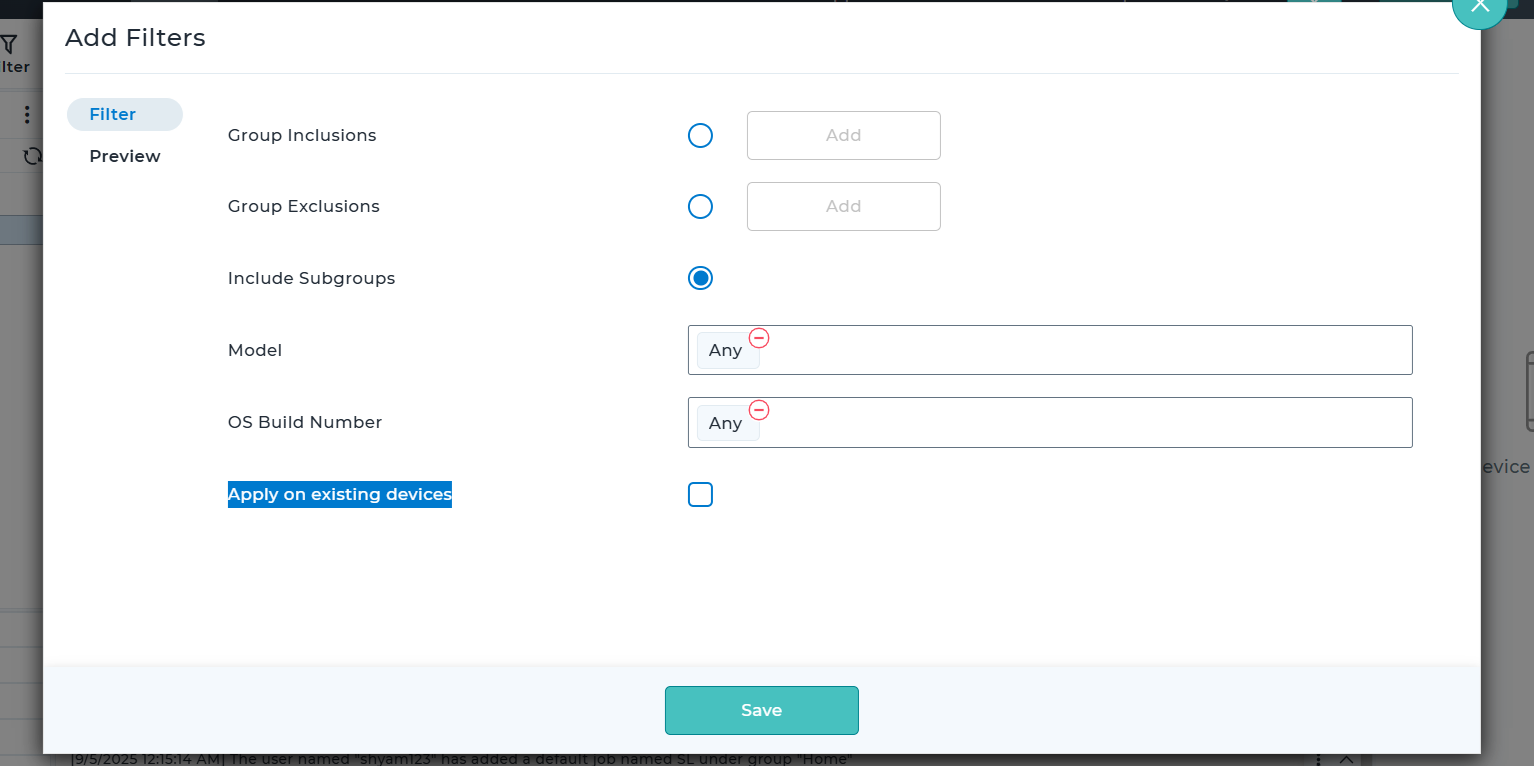
- Save and click OK.
Need more help? Here’s how to get help from our experts.
Was this helpful?
YesNo