
Purpose
To make it easier to share Android enrollment QR codes, SureMDM provides the “Share QR” option. This allows administrators to send QR codes directly through email, helping users enroll devices quickly without manual sharing.
Prerequisites
- Access to the SureMDM Console
- Enrollment QR code already created
- Valid recipient email address
Steps
- On the SureMDM Console → Enrollment → Device Enrollment – QR Code
- Select an existing QR configuration and click on Share QR.
- In the pop-up Share QR window, choose the required options:
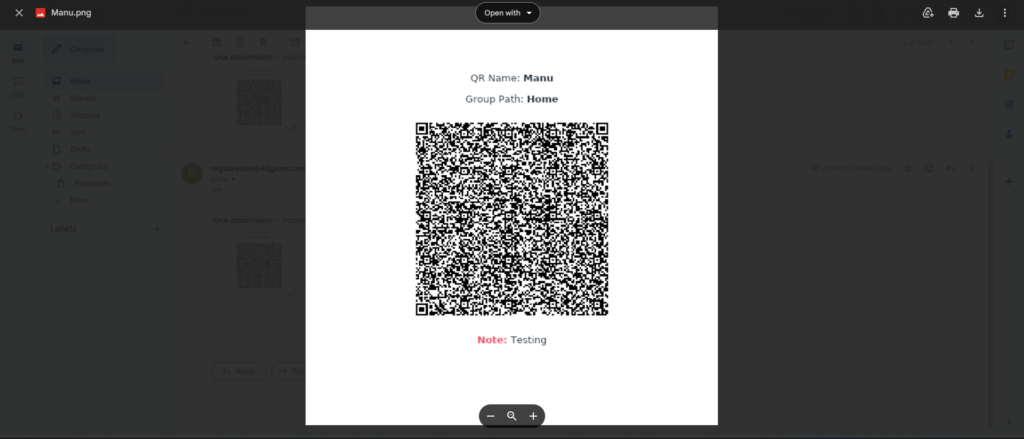
- Include QR Name (optional)
- Include Group Path (optional)
- Include Note (optional)
- Enter the Email ID and Click Send
Expected Results
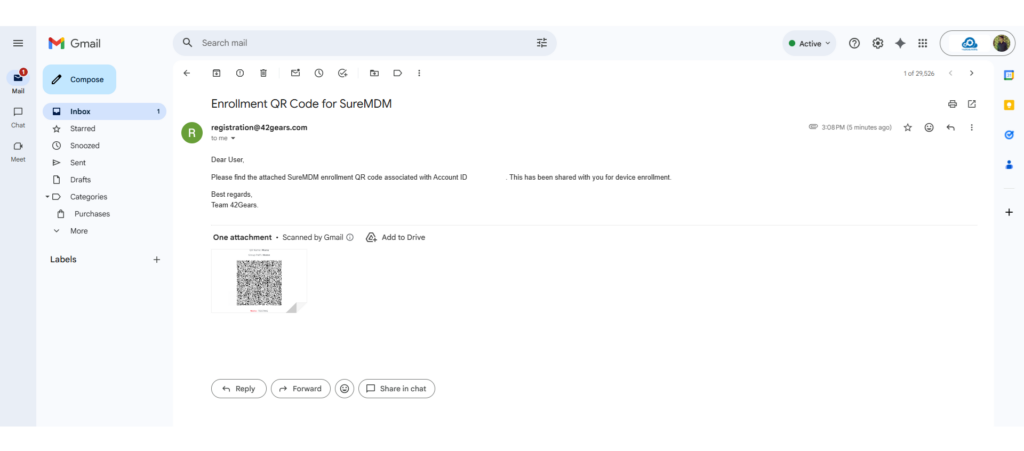
- The recipient receives an email with:
- Subject: Enrollment QR Code for SureMDM (Account ID)
- A standard message
- QR code image attached for enrollment
Conclusion
The Share QR feature helps simplify the enrollment process by allowing QR codes to be sent directly via email. This reduces manual effort and makes device onboarding faster and more convenient.
Need more help? Here’s how to get help from our experts.
Was this helpful?
YesNo