
Overview
SureMDM’s Next-Gen Remote Support offers enhanced performance and features. However, in certain network environments or on specific device models, the session may fail to load or remain stuck on the “Connecting to device” screen. This guide provides instructions on how to revert to Classic Remote Support to ensure uninterrupted device management.
Objective
- The remote session is stuck on the “Connecting to device” prompt for more than 60 seconds.
- The screen remains black or shows a continuous “Capturing screen” message.
- Touch events or clicks are not responding in the Next-Gen interface.
- Error message: “Failed to navigate to Next Gen Remote Support.”
- In case the customer wants to use Classic report support that Next Gen.
Steps
Method 1: If the Next-Gen session fails to establish a connection within a predefined timeout period:
- Wait for the console to detect the connection failure.
- A prompt will appear stating: “NextGenRemoteSession failed. Would you like to switch to classic mode?“
- Click Switch to Classic Mode. The session will automatically reload using the Classic engine.
Method 2: If the Next-Gen session establishes a connection within a predefined timeout period”
- On the remote screen, check for the Classic Remote control option in the bottom right corner as shown in the below screenshot:
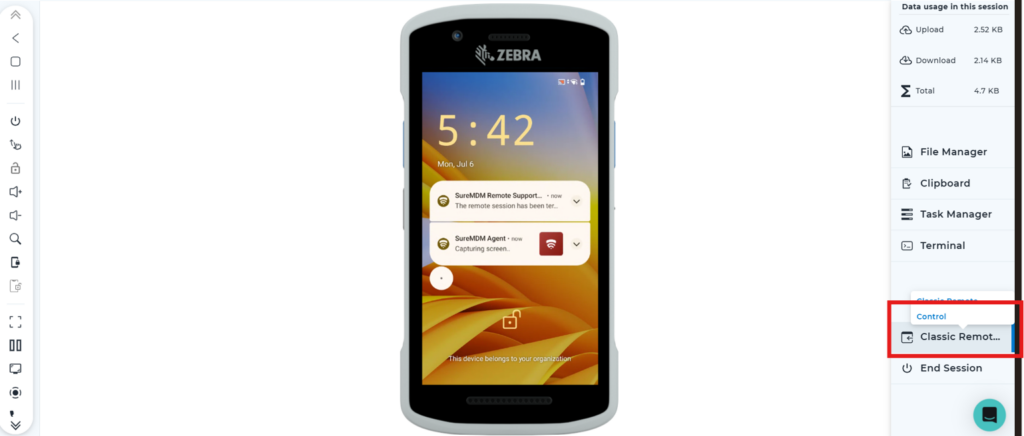
- Next time when remote access is initiated on the device, the Classic remote screen itself will load instead of NextGen.
Results
After switching to Classic Remote Support, all subsequent remote sessions for the selected device will open using the Classic Remote engine instead of the Next-Gen Remote engine. This helps avoid issues such as the session being stuck on “Connecting to device”, a black screen, continuous “Capturing screen” messages, or unresponsive touch/click events encountered in Next-Gen Remote Support.
Conclusion
By reverting to Classic Remote Support, administrators can continue managing devices without interruption when Next-Gen Remote Support fails to establish or maintain a stable session. Users can switch to Classic Remote either through the automatic fallback prompt when the Next-Gen connection fails or manually from the remote session interface. Once enabled, future remote sessions will automatically launch using Classic Remote until the remote mode is changed again.
Need more help? Here’s how to get help from our experts.
CONTACT US