
Purpose
The App Uninstall job allows administrators to remotely uninstall applications from enrolled devices. This job allows you to manage the applications by providing a centralized method to remove unwanted or unnecessary apps. By using the App Uninstall job, administrators gain enhanced control over the software environment on enrolled devices.
Prerequisites
- The device must run SureMDM Agent v4.56 or later for this feature to work.
Steps
1. Navigate to jobs and select New Job.
2. Navigate to Operating system and select Windows under Desktop Platforms
3: Then select App uninstall.
4:Select the application(s) that you want to uninstall .
NOTE: Only the applications which are synced with the SureMDM server will be available in the Application list.
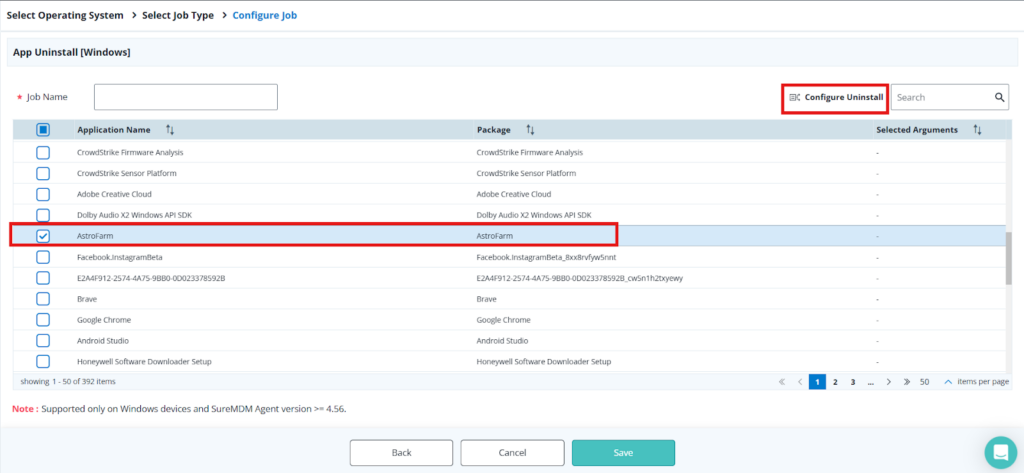
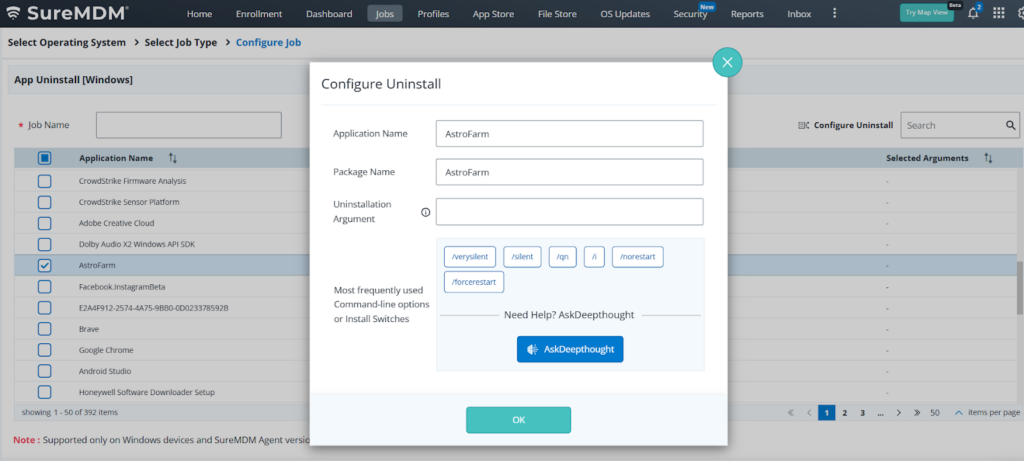
5:Click Configure Uninstall to select one of the following Uninstallation Argument and click OK:
- /verysilent
- /silent
- /qn
- /i
- /norestart
- /forcerestart
6: Save the Job and deploy it to the devices.
Conclusion
In conclusion, the App Uninstall job enables administrators to remotely remove unwanted or unnecessary applications from enrolled devices through a centralized management approach. This helps maintain a controlled, secure, and optimized software environment across all managed devices.
Need more help? Here’s how to get help from our experts.