
The Customer Managed App Inventory Tool helps administrators discover and upload portable .exe applications to SureMDM. These applications can then be used across various SureMDM features, including AppLocker and SureMDM Just-In-Time (JIT) Admin.
For AppLocker, the tool simplifies the creation of application allowlists and blocklists by making portable applications available for policy configuration. For JIT Admin, it enables administrators to select approved applications when configuring application-based privilege elevation workflows.
By maintaining a centralized inventory of portable applications, administrators can improve application visibility, streamline policy creation, and enhance security management across Windows devices.
Purpose
The purpose of this knowledge article is to provide a guide on how to use the Customer Managed App inventory tool to manage and maintain portable .exe apps inventory.
Benefits
Using the Windows App Inventory Tool helps administrators:
- Discover portable .exe applications that are not captured through standard software inventory methods.
- Maintain a centralized inventory of approved applications.
- Simplify AppLocker allowlist and blocklist creation.
- Support application-based workflows in SureMDM Just-In-Time (JIT) Admin.
- Reduce manual effort when configuring application control policies.
Where Can the App Inventory Tool Be Used?
The App Inventory Tool is used to collect and maintain an inventory of portable .exe applications that are not automatically discovered by SureMDM.
Applications uploaded using this tool can be utilized in the following SureMDM features:
1. AppLocker
Administrators can use the uploaded application inventory while configuring AppLocker policies.
The inventory helps simplify the process of creating allowlist or blocklist rules for portable applications that may not appear in the standard application inventory.
Path:
Profiles > Windows > App Locker > Add Apps > Customer Managed App Inventory
2. SureMDM Just-In-Time (JIT) Admin
Administrators can use the uploaded application inventory when configuring application-based elevation requests in SureMDM JIT Admin.
This allows users to request temporary administrative privileges only for approved applications that are present in the inventory.
Using the App Inventory Tool ensures that portable applications are available for selection when configuring SureMDM JIT Admin policies.
Path:
Security > SureMDM JIT Admin > Windows > Pre-approved apps > Create > Add App > Customer Managed App Inventory
Prerequisites
- SureMDM Administrator account.
- SureMDM agent version 6.32 & Above
- The account used to login to the tool has the role assigned from SureMDM console > Account Settings > Account Management to access the required API key.
Steps
- Download the App Inventory Tool from here.
- An exe file will be downloaded on the device.
- Locate the file “appinventory.exe”.
- Double click to Run the app.
- Enter Username, Password, Customer ID, API Key and Endpoint URL.
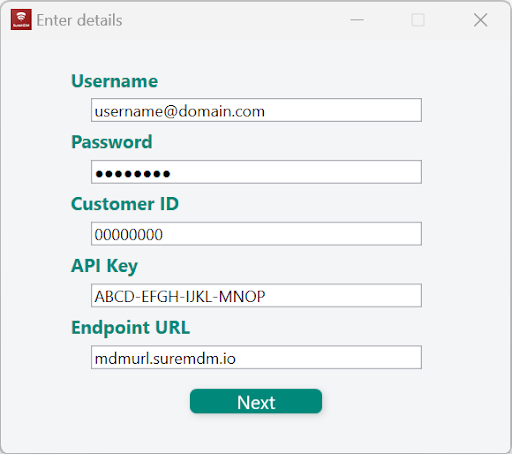
Note:
- Username is the same username used to login to SureMDM console.
- Enter the Password associated with the Username.
- Customer ID or Account ID is the identification number of the SureMDM account.
- Customer ID can be copied from the SureMDM Console, i.e., Navigate to Settings on the top right corner in SureMDM console to get Account ID (Settings icon > Account ID).

- API Key can be copied from the Account Settings in the SureMDM Console, i.e., Navigate to Settings on the top right corner in SureMDM console to get API Key (Settings icon > Account Settings > Account Management)
- Note: SureMDM Administrator would require appropriate RBAC to access it.
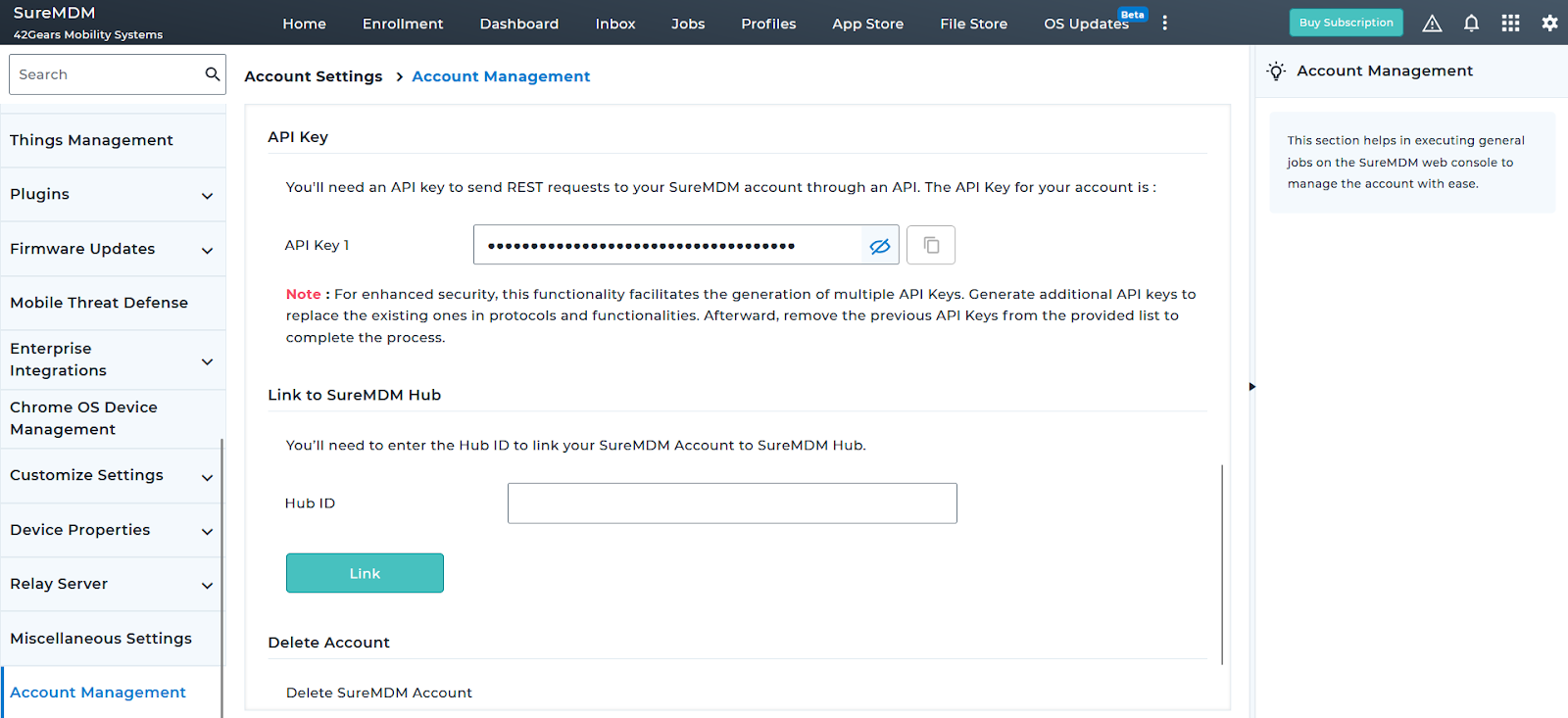
- Endpoint URL is the URL used to login to SureMDM console.

- Once done, Click Next.
- Once successfully configured the AppLocker Inventory home screen will appear.
- Under App Type, select one of the following options:
- AppLocker – Select this option if the application will be used while configuring AppLocker allowlist or blocklist policies.
- JIT Apps – Select this option if the application will be used while configuring SureMDM Just-In-Time (JIT) Pre-approved apps.
- Note: The selected app type determines where the uploaded application will be available within the SureMDM console.
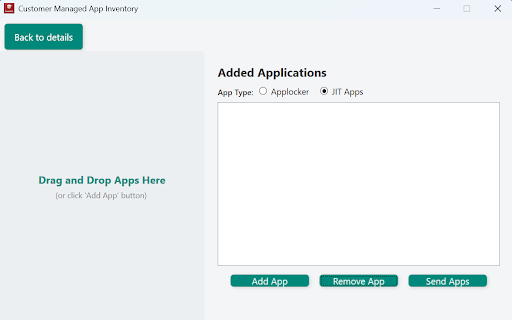
- Click on Back to details to go back and edit the account settings configuration.
- Click on Add App to add .exe applications to the inventory.
Or
Drag and Drop the .exe file into the tool to add applications.
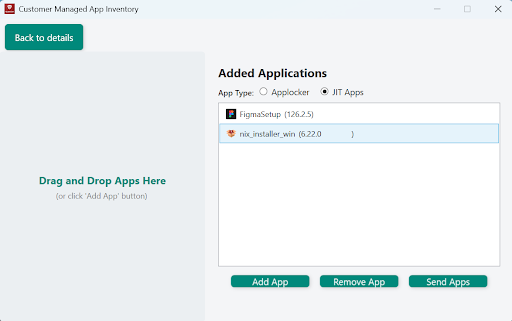
- Click on Send Apps to send the applications to the console. Apps added in the inventory should reflect in the App Locker payload of Windows profile. (Profiles > Windows > App Locker > Add Apps > Add > Customer Managed App Inventory)
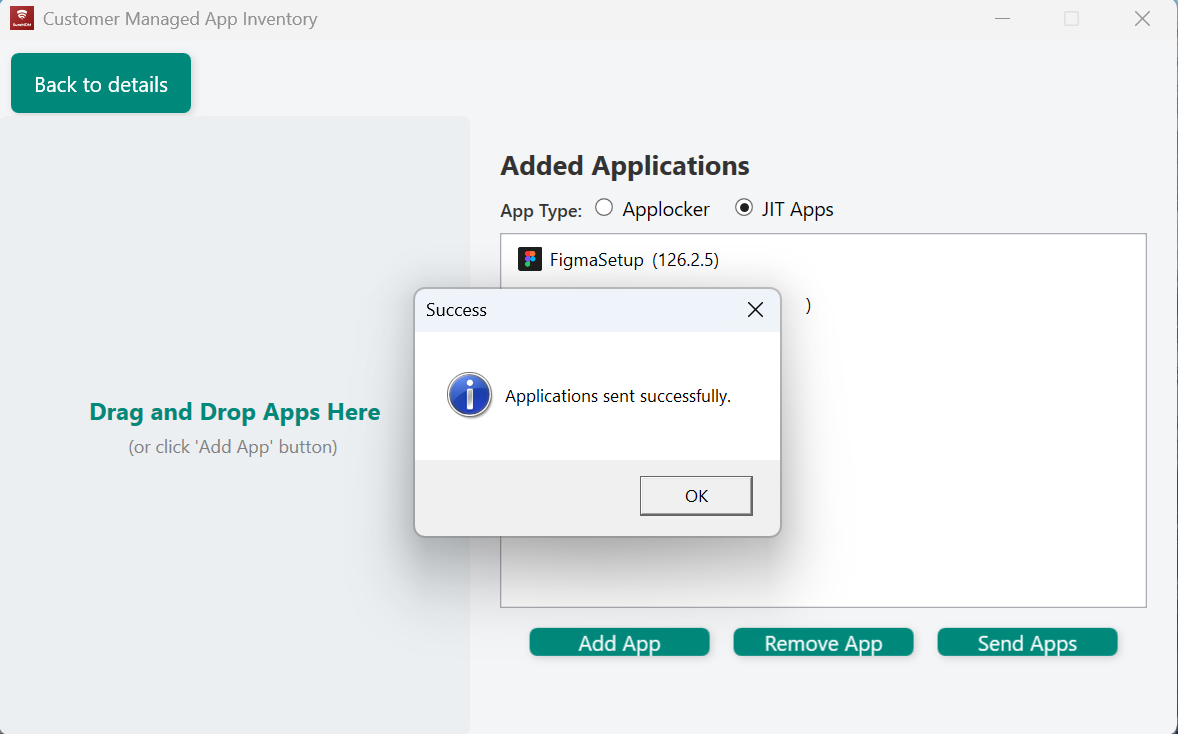
- Click on Remove App to remove the app from the App Inventory tool to prevent reporting it to Console.
Need help? CONTACT US