
Purpose
To remove previously deployed configurations from enrolled devices, SureMDM provides a Revoke option within the Deployment Status UI. This feature helps administrators efficiently withdraw outdated or unnecessary policies and track their removal status.
Prerequisites
- SureMDM Agent version V28.58.05 or later
- Device enrolled in SureMDM
- Profile already deployed to the device
- Access to SureMDM Console
Steps
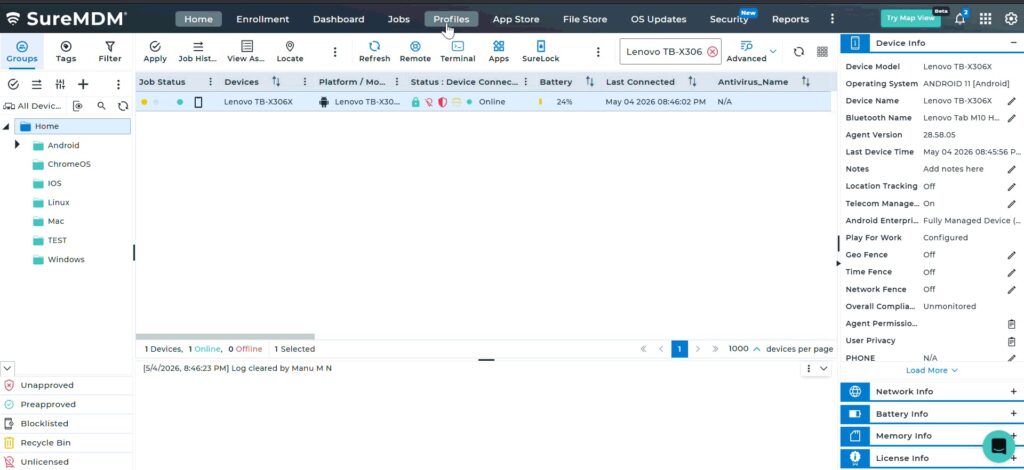
- On the SureMDM Console -> Go to Profiles
- Select the desired Profile -> click on Deployment Status
- In the Profile Deployment Status page, Check this Toggle Button which says “View Assigned Deployments only”.
- On the left part of the page, click on the Success(Deployed) Part of the Profile in Pie Chart
- Upon clicking that, on the Right side you will be able to view the List of Devices in which the Selected Profile is Successfully Deployed
- Select the Required Device/Devices and click on Revoke
- Monitor the Revoke Status
- Observe the updated Deployment Status Graph (circular chart)
- Click on the Revoke section to view detailed status
8. Understand Revoke Statuses
- Revoke Pending – Command is queued; device has not checked in
- Revoke In Progress – Device is currently removing the configuration
- Revoked – Configuration has been successfully removed
Expected Results
- Selected profiles are removed from target devices
- Deployment Status Graph reflects real-time revoke progress
- Administrators can track each stage of the revoke operation
Conclusion
The Revoke option enhances profile management by allowing administrators to quickly withdraw configurations and monitor their removal lifecycle. This ensures better control over device policies and improves operational efficiency.
Need more help? Here’s how to get help from our experts.
CONTACT US
Was this helpful?
YesNo