
Purpose
This article explains how messages sent from an Android device using the SureMDM Agent are displayed in the SureMDM Console Inbox. It highlights how administrators can identify the source of a message using the Device Name and Device ID shown in the Inbox, helping administrators quickly trace, verify, and respond to messages received from enrolled devices.
Prerequisites
- An Android device enrolled in SureMDM
- SureMDM Agent installed on the device
- Access to the SureMDM Web Console
Steps
Send a Message from the Android Device
- On an Android device enrolled in SureMDM, open the SureMDM Agent application.
- Click on Mailbox -> Click on + Add to compose a new message.
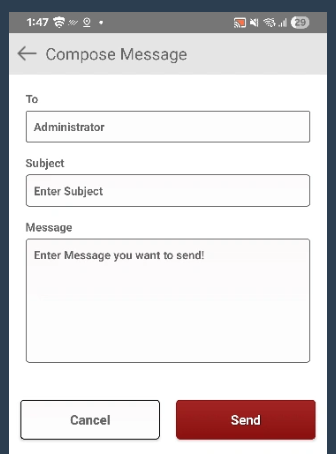
- On the Compose Message screen:
- To: Administrator
- Subject: Enter any subject
- Message: Enter the message you want to send and click on Send
View the Message in SureMDM Console
- Log in to the SureMDM Web Console and Click on Inbox from the top menu.
- Locate the message in the Inbox list.
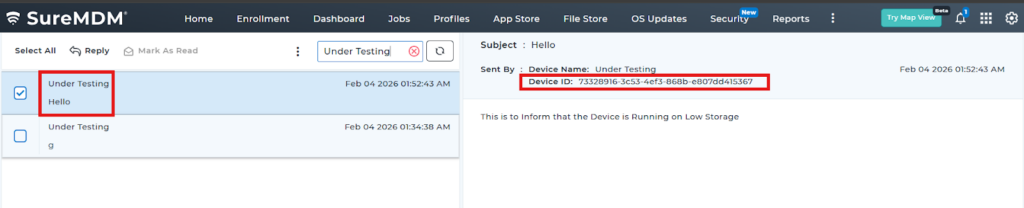
- The Left pane displays the Device name with the Message Subject.
- The Right pane – we can see the details like Subject, Sent By – Device Name and Device ID
- Date and time the message was sent (for example: Feb 04 2026 01:34:38 AM)
Expected Results
- Messages sent from the SureMDM Agent appear in the SureMDM Console Inbox.
- Each message clearly displays the Device Name and Device ID, allowing administrators to accurately identify the source device.
- The message timestamp helps administrators track when the communication was sent.
Conclusion
Displaying the Device ID along with the Device Name in Inbox messages ensures better traceability and accountability for communications initiated from managed devices. This feature helps administrators quickly identify the sending device and respond efficiently through the SureMDM Console.
Need more help? Here’s how to get help from our experts.