
Purpose
Single App Kiosk Mode and Multi-App Kiosk Mode are robust device-restriction features designed to keep devices secure and focused on their intended purpose.
In Single App Kiosk Mode, the device is locked to one specific application that stays on the screen at all times. Users cannot exit the app, open other applications, or access device settings. In SureMDM, for Linux only Chrome-based approved landing URL configured through the Chrome Kiosk policy is accessible. Everything else is automatically blocked, ensuring a simple and distraction-free experience.
In Multi-App Kiosk Mode, the device allows access to a selected set of approved applications. Users can switch only between these allowed apps, while all other apps, system settings, and device features remain restricted. This mode is ideal when more than one application is required to complete daily tasks, without compromising security.
When the devices are in kiosk locked and an administrator wants to exit the kiosk from an admin perspective, this article explains how to remove the kiosk policy enforced on Linux devices.
Prerequisites
- Access to the SureMDM Console with appropriate administrative privileges to create and apply profiles.
- Feature is Supported on Ubuntu 18.04 LTS and above.
Note: Currently Single App Mode is supported only for Chrome.
Steps
- Login to SureMDM Console.
- Navigate to Profiles → Linux → Choose the profile where the Kiosk Policy is configured already.
- Create a Copy of the existing profile or Modify within the same Profile.
- In the copied/modifying profile, Look for kiosk Policy > Remove.
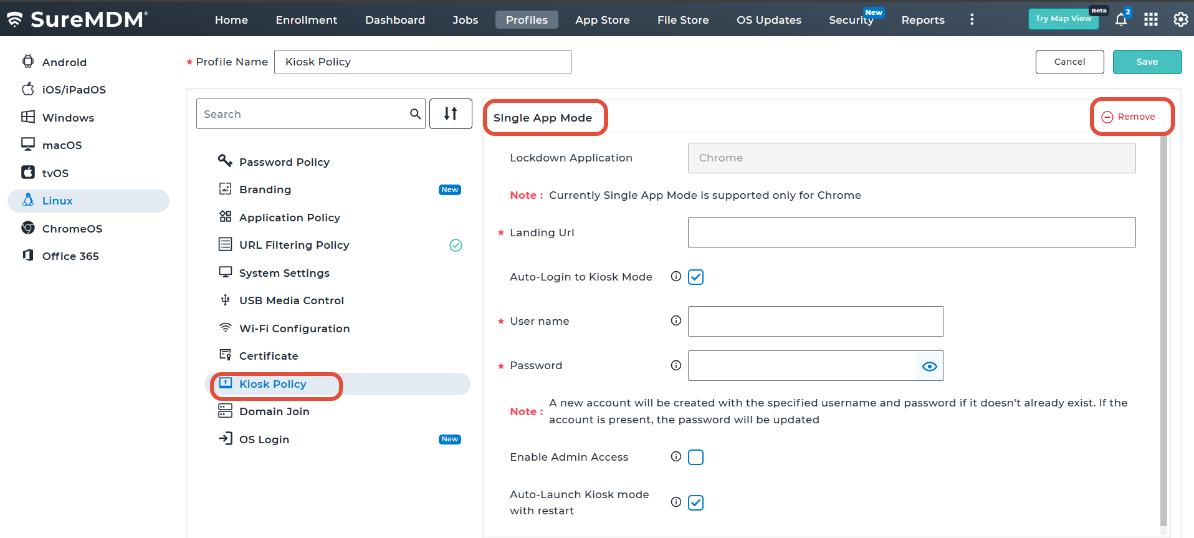
- Save the changes and Apply the modified/copied profile to the target Linux device.
Conclusion
Kiosk policies provide a secure and focused device experience, while the ability to exit kiosk mode gives administrators the flexibility to manage, troubleshoot, and update devices when needed. This balance ensures strong security without limiting administrative control.
Need more help? Here’s how to get help from our experts.