
SureMDM provides an option to enable USB Debugging on Android devices through profiles and system settings. However, even after USB Debugging is enabled, the Developer Options menu is not visible by default. Traditionally, end users must manually navigate to About Device/Table → tap the Build Number multiple times to enable Developer Mode and access Developer Options
KB article for reference
To simplify this process in enterprise environments, SureMDM allows administrators to enable and display Developer Options remotely on EA-signed devices using a RunScript job, eliminating the need for manual interaction on the device.
Purpose
This article provides the step-by-step instructions on how to enable and make the Developer Options menu visible on EA-signed Android devices using a RunScript job in SureMDM.
Prerequists
Works on EA signed devices
Steps
- Log in to the SureMDM Web Console.
- Navigate to Jobs and click New Job
- Select the Android platform.
- Choose RunScript as the job type.
- Enter a Job Name.
- In the script editor, paste the below provided RunScript command.
!#suremdm
putGlobalSettings(development_settings_enabled,1)
Note:
Use 1 in the Runscript as a passing argument to enable the developer option and 0 to disable it.
7. Save the job and deploy it onto the device.
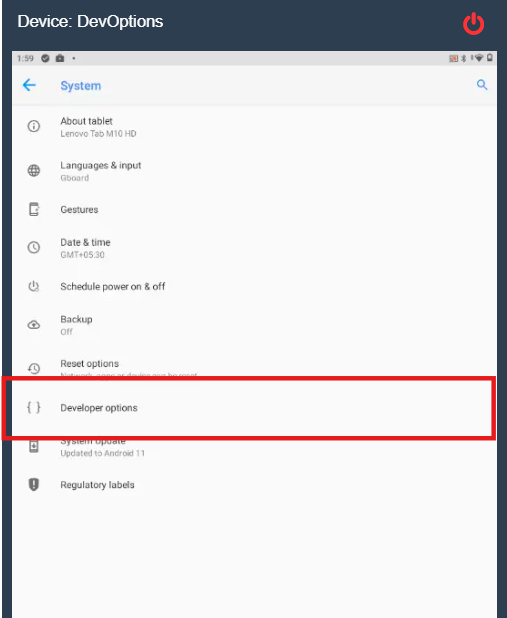
8. On the device, once the job has been deployed successfully, go to the device’s Settings and verify that Developer Options is now visible and accessible.
Conclusion
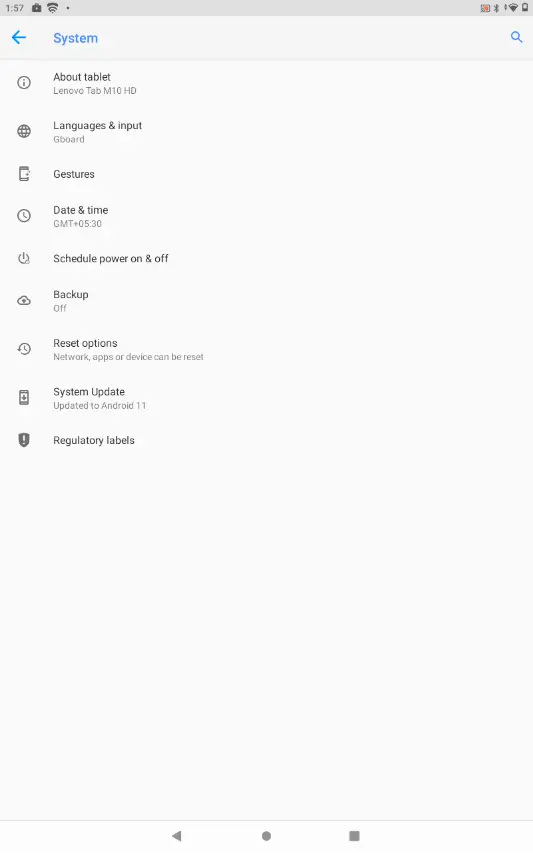
By default, the Developer Options are disabled on the device. Once the Run Script is deployed and the value is set to 1, the Developer Options will become visible on the device.
Before deploying the script
After deploying the script
Need more help? Here’s how to get help from our experts.