
Purpose
The purpose of this knowledge article is to provide a guide on how to blacklist and whitelist URLs in the Chrome browser on Linux devices.
Prerequisites
N/A
Steps
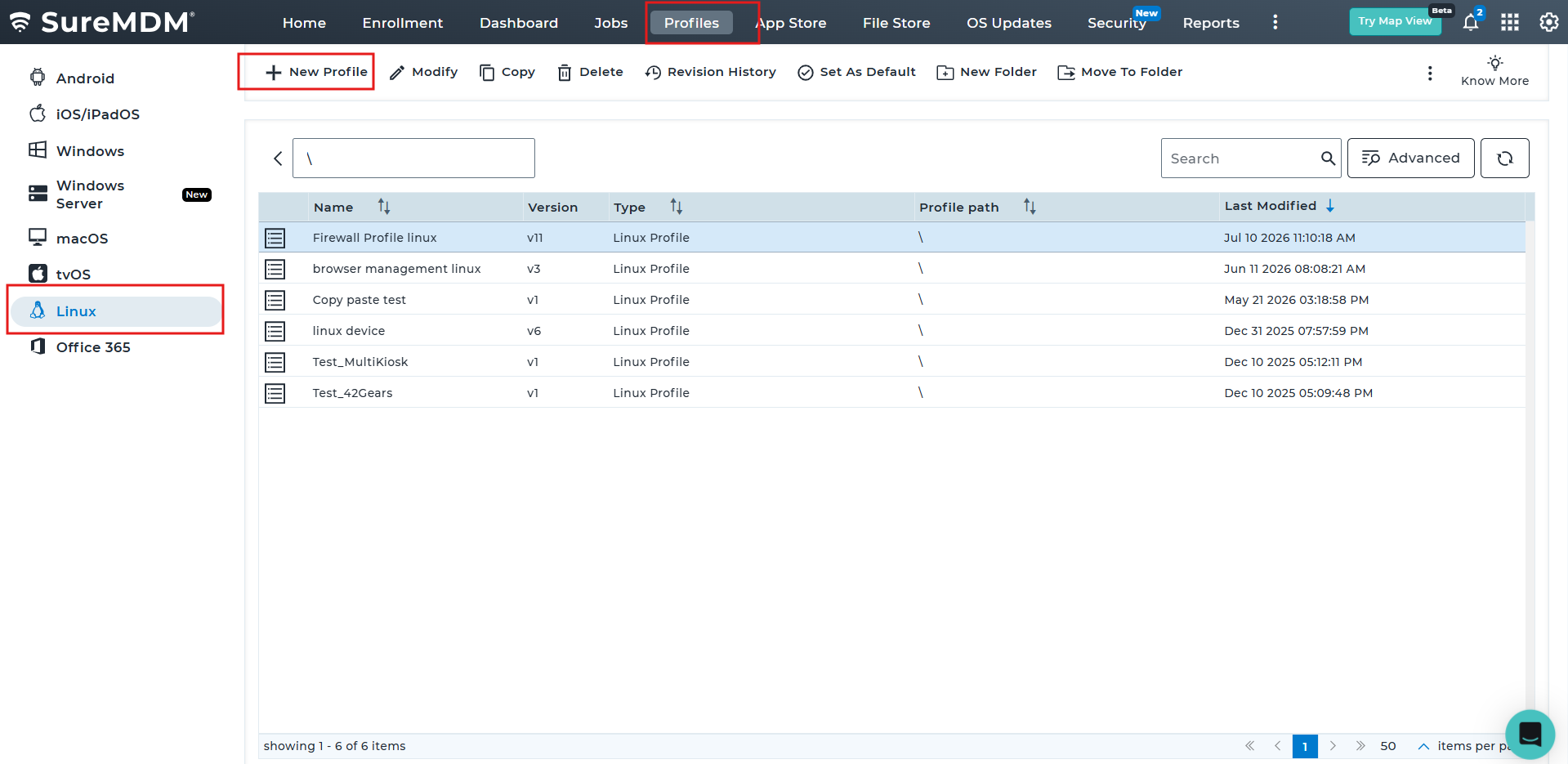
1. Log into SureMDM and navigate to Profiles.
2. Select Linux OS and click on Add to create a new profile. You can also modify any existing profiles.
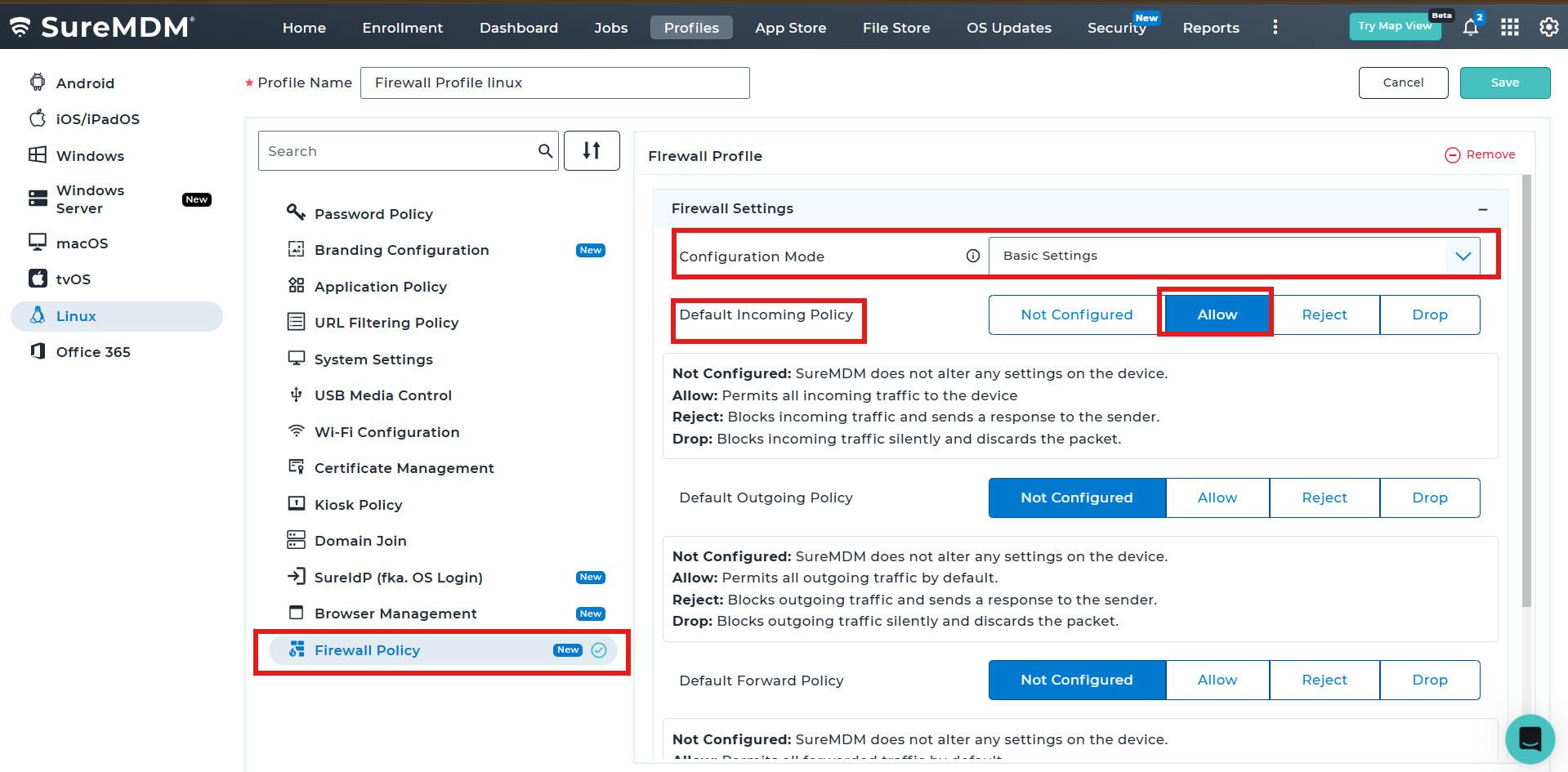
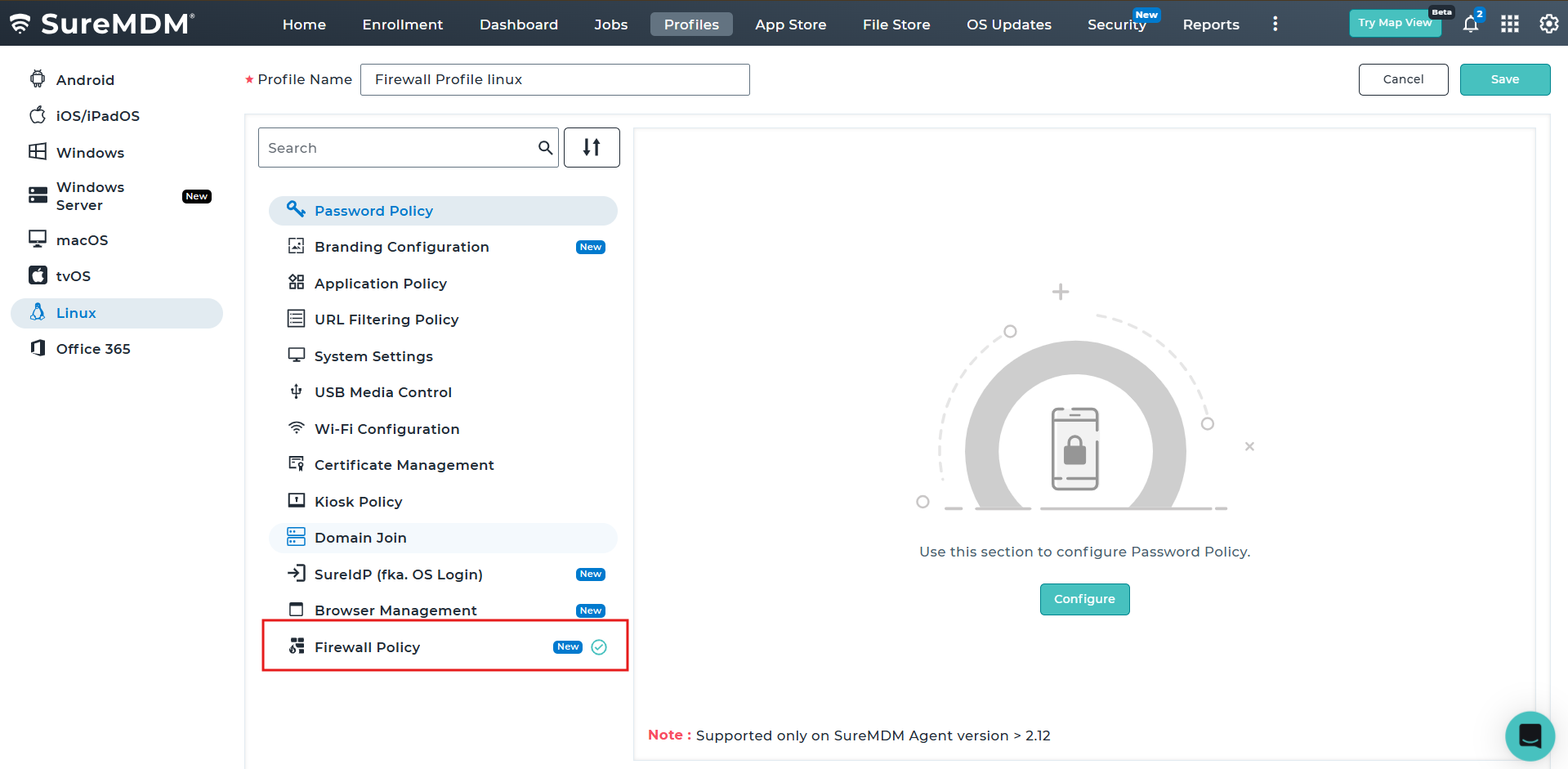
3. Name the profile and click on Browser Management, then click on Configure.

4. Under the Browser Management, scroll down to URLAllowlist -> Allow access to a list of URLs.
Add the URLs as suggested on below screenshot and tap on + icon
5. Follow the same steps as suggested on Step 4 for URL Block listed as well.
6. To allow or block all URLs which are not added specifically, you can add the URL
URL format to block all domains and subdomains: “*”, refer to screenshot below
7. Save and deploy the profile on required devices.
NOTE:
- The URLAllowlist policy takes precedence over URLBlocklist.
- This policy is limited to 1,000 entries.
- This policy also allows enabling the automatic invocation by the browser of external applications registered as protocol handlers for the listed protocols like “tel:” or “ssh:”
- By leaving the policy unset allows no exceptions to URL Blocklist.
Note: From Google Chrome version 92, this policy is also supported in the headless mode.
Conclusion
By configuring the URL Allowlist and URL Blocklist policies in the Browser Management section of a Linux profile, administrators can effectively control website access in Google Chrome on managed Linux devices. The URL Allowlist policy always takes precedence over the URL Blocklist, ensuring that explicitly allowed URLs remain accessible even if broader blocking rules are in place. After saving and deploying the profile through SureMDM, the configured browsing restrictions are automatically applied to the target devices, helping organizations enforce web access policies and improve security and compliance.
Need more help? Here’s how to get help from our experts.