
Purpose
SureLock offers the following admin-related features to help admins manage the devices better. A few of these features work best when they are enrolled in SureMDM.
Prerequisites
SureLock
Steps
- Install and Launch SureLock.
- Access SureLock Admin Settings.
- In the Admin Settings screen, tap on SureLock settings.
- Goto Miscellaneous Settings and tap on the Admin Login Security option. Below options will be listed.
- Admin Login Security – Select this option to enable Admin Login Security features
.
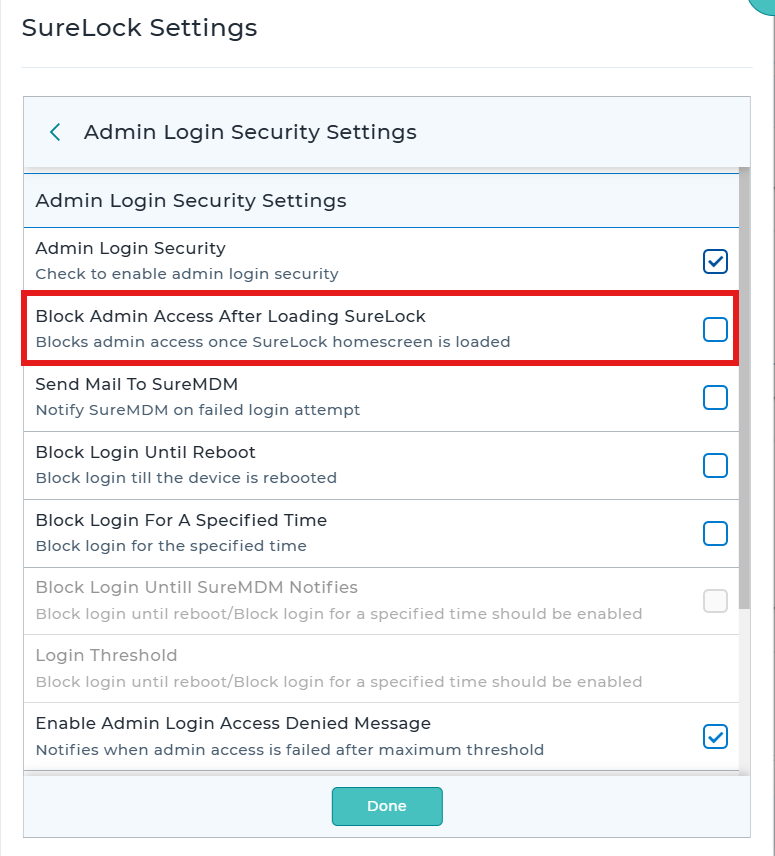
- Block Admin Access after loading SureLock – When this feature is enabled, access to SureLock Admin Settings will be blocked after loading SureLock. The only way to access SureLock Admin Settings is to reboot the device and tap 5 times while SureLock is loading on the device.
- Send Mail to SureMDM – This option will be greyed out if the locked device is not enrolled in SureMDM. Once this feature is enabled, the admins get email notifications when the user tries to access SureLock Admin Settings and fails.
- Block login until reboot – Enable this option to reboot the device to access SureLock Admin Settings, when the user exceeds the number of failed attempts specified in Login Threshold.
- Block Login for a specified time – Enable this option to block the SureLock login for a specified time that is set in the Set Prevent Login Time prompt when the user exceeds the number of failed attempts specified in Login Threshold option.
- Block Login until SureMDM notifies – Enable this option to block access to SureLock Admin Settings when the user exceeds the number of failed attempts specified in Login Threshold. This option will block access to SureLock Admin Settings until the admins use SureMDM to push the grant login access run script to the device.
- Enable Admin Login Access Denied Message : it will enable the Access denied message after the password threshold exceed
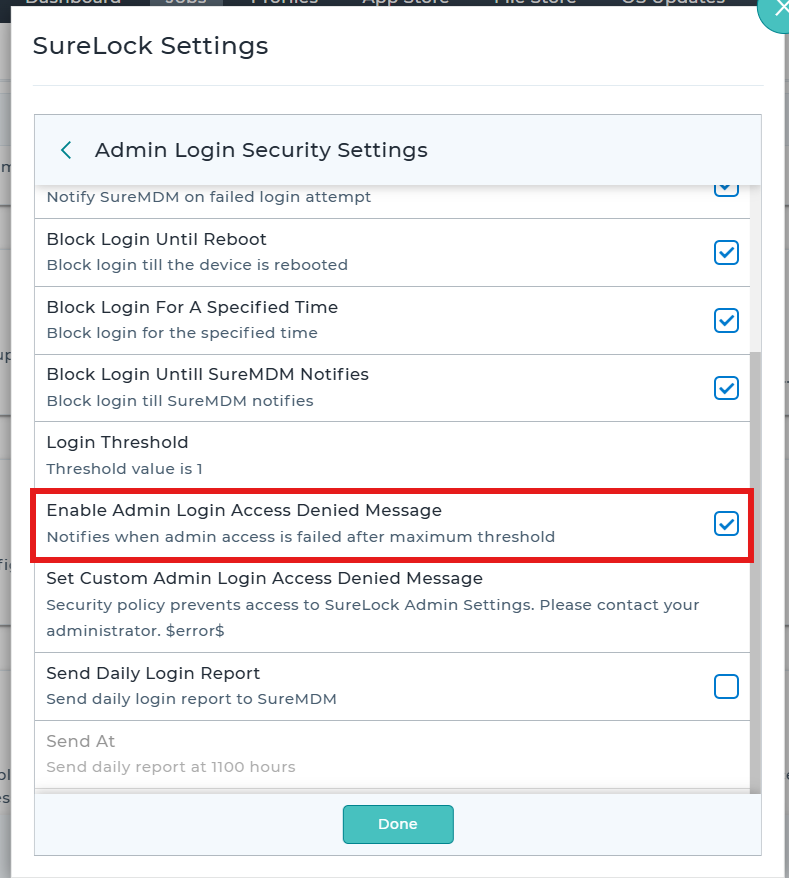
- Set Custom Admin Login Access Denied Message: Security policy prevents access to SureLock Admin Settings. Please contact your administrator. $error$
A run script job with the following command should be pushed to the device to grant login access.
a. For Blank password:
am broadcast -a com.gears42.surelock.COMMUNICATOR -e “command” “allowlogin”
b. For Other passwords:
am broadcast -a com.gears42.surelock.COMMUNICATOR -e “command” “allowlogin” -e “password” “0000”
- Login Threshold – Use this option to set a value for the maximum number of failed attempts by the device users, after which the set features under Admin Login Security will be triggered.
- Send Daily Login Report – Once this option is enabled, SureLock will send daily login reports for successful and failed Attempts to SureMDM.
- Send At – Set the time for the Daily Login Report to be sent to SureMDM Web Console.
5. Save the configuration changes.
Once done, the changes made will start reflecting. For more details on our products, click here
Conclusion:
SureLock’s Admin Login Security feature adds an extra layer of protection to prevent unauthorized access to the SureLock Admin Settings. By configuring options such as login attempt thresholds, temporary or permanent login blocking, reboot-required access, email alerts, and SureMDM integration, administrators can significantly improve device security while maintaining centralized control. When used with SureMDM, these features provide enhanced monitoring, reporting, and remote recovery capabilities, making it easier to secure enterprise Android devices and respond quickly to unauthorized access attempts.
Need more help? Here’s how to get help from our experts.
CONTACT US